Creating Templates
The template page is a graphical representation of the component interface structure that you will be using to load data. The structure of the component interface is retrieved from the database when a new template is built. All of the fields that are exposed through the component interface appear on the template page. Fields that are read-only on the component interface will not appear on the template.
The new template macro builds the parent-child relationship within Microsoft Excel based upon the component interface scroll-level definition. The system adds a new row for each scroll level and assigns a unique identifier to it.
Access the Template tab in ExcelToCI.xlsm to create your template:
This example illustrates the Template tab in the Excel to Component Interface utility.
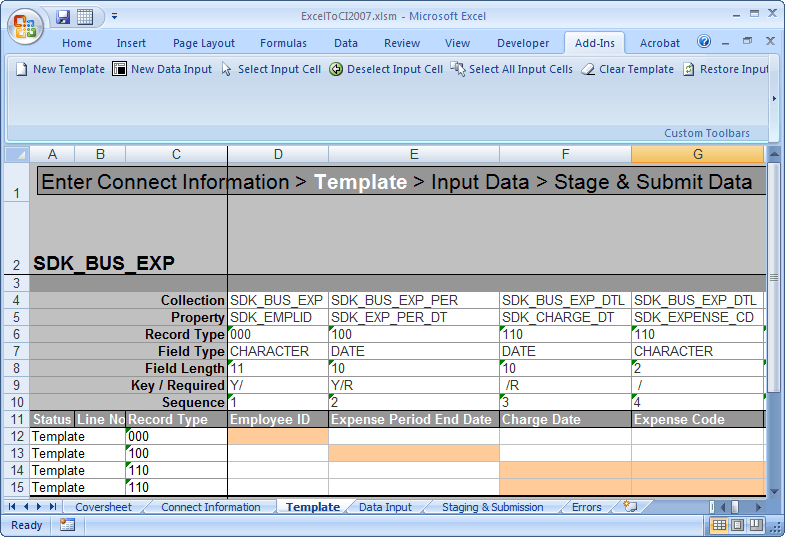
| Field or Control | Description |
|---|---|
|
Collection |
The name of the component interface collection. A collection is a property that points to a scroll, rather than a field, in the underlying component for a component interface. |
|
Property |
The component interface property name. Typically, this is also the name of the field on the page. |
|
Record Type |
This number represents the parent/child relationship of the records. The level 0 scroll record is always represented by 000. Level 1 scroll records appear with numbers that start with 100 and always have 00 as the last two numbers. Level 2 scrolls are identified by numbers that start with the identifier of their level 1 parent and end with a 0. Level 3 scrolls are identified by the first number from the level 1 parent, the second number from its level 2 parent, and then the third number from its own position in the list. The numbers for each scroll level increments based on the number of records that exist at that level. For example, level 0 would be 000, level 1 would be 100, level 2 would be 110, and so on. Note: Component interfaces that have more than 10 collections at a given level increments with alphabetic identifiers. For example, 800, 900, A00, and so on. |
|
Field Type |
The standard PeopleSoft type for the field, for example, Date, Character, and so on. |
|
Field Length |
The length of the field as defined by PeopleSoft. For numeric fields and signed number fields, the length is broken down into integer and decimal positions. For example, a length of 15.3 indicates 15 integer positions and three decimal positions. |
|
Key/Required |
If the field is a key field, the system will display a Y to the left of the forward slash. When the field is not a key, it will be blank. If the field is a required field, the system will display an R to the right of the forward slash. When the field is not required, it will be blank. This information comes from the record definition itself. Note: Fields that are either keys or required must be set in order to submit data successfully. |
|
Sequence |
The sequence number represents the property order in the template. |
|
Status |
This field displays the load status on the Staging and Submission page. |
|
Line No |
This corresponds to the line number on the Input Data and the Staging and Submission pages. |