Searching Component Interfaces to Test
To test the component interface, you search for the component interface to test, and then you test it.
Access the Component Interface Tester search dialog box:
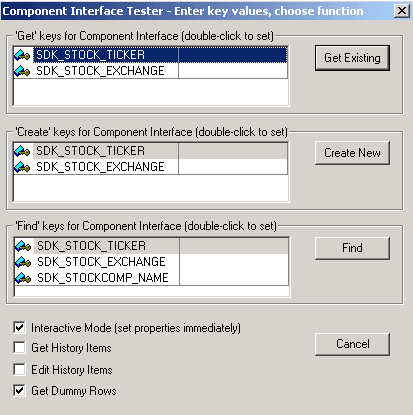
This example illustrates the fields and controls on the Component Interface Tester – Enter key values, choose function dialog box . You can find definitions for the fields and controls later on this page.
To search for a component interface to test:
-
Open the component interface in PeopleSoft Application Designer.
-
Select from the PeopleSoft Application Designer menu.
The Component Interface Tester search dialog box appears. This dialog box displays the keys (in the left-hand columns) for getting, creating, or finding an instance of the component interface. The right-hand columns provide a place for you to enter sample key values for testing.
-
Enter key values.
-
Double-click the column to the right of any displayed keys.
-
Enter the value in the right-hand column.
The data that is used for the test corresponds to the key values that you enter here. In the preceding example, we have entered an employee ID of 6602.
-
| Field or Control | Description |
|---|---|
|
Interactive Mode |
In interactive mode, any action request occurs immediately. Each property being set causes an immediate trip to the application server (or database server in two-tier mode). This differs from non-interactive mode, in which actions are often held and later sent in batches. For example, in non-interactive mode, if you set a property, the property is not validated until you perform the save. However, in interactive mode the property is validated immediately. This means that edit processing (and other processing, such as FieldChange PeopleCode) occurs for each set property. Whether you select this option depends on how you expect a particular component interface to be used and what you are currently testing. In a real production system, this parameter can significantly affect performance, but it makes little difference in the test component. In non-interactive mode, errors and properties are not updated until a method is run. By default, Interactive Mode is selected in the component interface tester. |
|
Get History Items |
Select to retrieves history data. This option applies to effective-dated fields only and is equivalent to running in either Update/Display or Update/Display All mode. |
|
Edit History Items |
Select to enable editing and saving of history data. This option applies to effective-dated fields only and is equivalent to running in either Update/Display or Correction mode. |
|
Get Dummy Rows |
Specify whether to get dummy rows. This option is selected as a default. The component processor provides dummy rows to enable quick data entry when the level you are accessing does not have any data. Because of this, an API that does not need this row finds it and exposes it to the user. The application that uses the API now has to determine whether the row is a dummy row and accordingly decides to execute Item or InsertItem. Setting the GetDummyRow to false enables the component interface processor to handle the counts accordingly. With this property set to false, users do not have to use item and InsertItem when adding new data at levels 1 to 3. Instead, they can comfortably always use InsertItem. |
|
Get Existing |
Clicking Get Existing is equivalent to opening a record in Update/Display or Correction mode online. It retrieves one instance from the database. After you click the Get Existing button, the Component Interface Tester dialog box appears. |
|
Create New |
Clicking Create New is equivalent to creating a new row in Add mode online. If your component does not support the Create method, this button is disabled. After you click the Create New button, the Component Interface Tester dialog box appears. |
Getting Existing Records by Using Partial Keys
If you want to retrieve a partial key, click the Find button on the Component Interface Tester page. The Find Results dialog box appears:
This example illustrates the Component Interface Tester – Find Results dialog box. Use the page to get existing records by using partial keys.
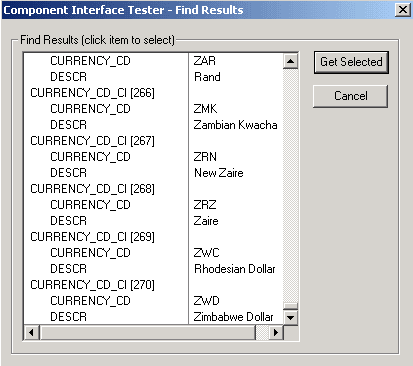
You can choose the specific instance by selecting and clicking the Get Selected button. If you do not enter a partial key before clicking Find, all key values in the database are returned (subject to the maximum count of 300, just as when online). This is the same as calling the Find method through the component interface API, followed by selecting a value from the Find results, setting the Get key, and calling the Get method. After you click the Get Selected button, the Component Interface Tester dialog box appears.