Testing Component Interfaces
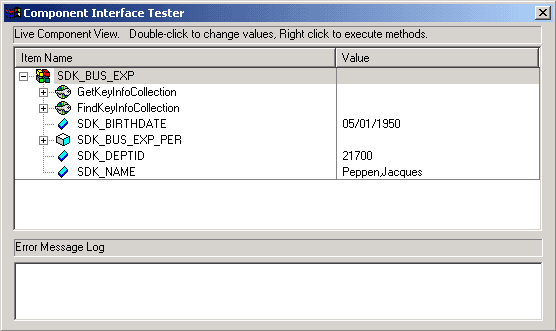
After you have searched for and retrieved the component interface, the Component Interface Tester dialog box appears.
This example illustrates the Component Interface Tester dialog box. Use the page to test component interface properties and methods.
Testing Component Interface Properties
From the Component Interface Tester dialog box, change the value of a property, double-click a value, and enter a new value. Some basic validation is done when you leave the field, which is equivalent to leaving a field using the Tab key in the online case. This validation includes system edit, FieldChange PeopleCode events, and FieldEdit PeopleCode events. Further validation can be done when the Save method is called (SaveEdit, SavePreChange, Workflow, and SavePostChange). If errors occur or warnings are encountered, messages are displayed in the Error Message Log area at the bottom of the window. The error message log displays the same text that would appear in the PSMessages collection of the Session object if you accessed the component through the Component Interface API.
Component Interface properties added from drop zone subpages can also be accessed and tested here.
Note:
In the Component Interface Tester, the Value field in the Edit Values dialog box accepts a maximum of 30 characters for character fields, regardless of the actual field length defined in the Component Interface.Testing Component Interface Methods
Test component interface methods by right-clicking the component interface name.
A menu appears that shows the Save and Cancel standard methods and any user-defined methods that exist for the component interface. The Find, Create, and Get standard methods are not valid for an instantiated component, and therefore are not shown.
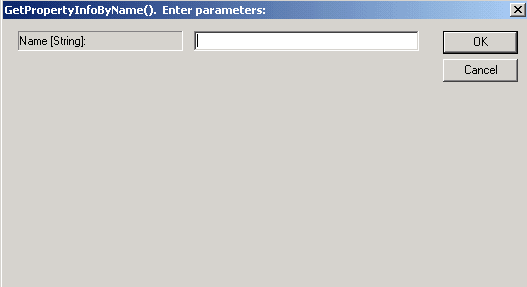
If a component interface method requires one or more parameters, a dialog box in which you can enter the parameters appears. After the method is executed, the same dialog box appears again, displaying changes to the parameters that were caused by the method. The return value of the function appears in the title of the dialog box. If a component interface requires no parameters, you do not see the initial dialog box, but you do see the return value dialog box following the function call.
This example illustrates the Enter parameters dialog box. Use the page to enter required parameters for component interface methods.
Note:
Because running a component interface method can result in a change to the component interface structure, PeopleSoft Application Designer always redraws the component interface tree in its collapsed form following a method call.
Testing Collection Methods
Test collection methods by right-clicking the collection name.
A menu appears that shows the standard collection methods. Select the collection method that you want to test for this component interface. After you select a collection method to test, the Enter parameters dialog box prompts you to enter an item number for the collection method that you are testing. The value that you enter for index [Number] is used to retrieve, insert, or delete an item, according to the following rules.
After you enter an index number, the result appears in the dialog box. If a return value is sent, it is displayed in the title bar. Otherwise, the message No value is displayed. Click OK or Cancel to dismiss the dialog box.
Collection Method Rules
This table describes the collection method rules:
| Collection Method | Purpose |
|---|---|
|
Item(index) |
Returns the row at the specified index. Only the success or failure of this routine is of interest from inside the test component. |
|
InsertItem(index) |
Inserts a new row either before the index that you specify if the collection is effective-dated or following the index if it isn’t effective-dated. |
|
DeleteItem(index) |
Deletes the row that is designated by the index number that you specified in the Enter parameters dialog box. |
|
ItemByKeys(key1, key2, …) |
Returns the row corresponding to the specified keys. Only the success or failure of this routine is of interest from inside the test component. |
|
CurrentItem |
This method returns the effective row in an effective-dated record. Only the success or failure of this routine is of interest from inside the test component. |
|
GetEffectiveItem(DateString, SeqNum) |
Returns the data row that would be effective for the specified date and sequence number. This is a more general case of the GetCurrentItem function, which returns the definition that is effective at this moment. This method works with effective-dated records only. |
|
GetEffectiveItemNum(DateString, SeqNum) |
Returns the item number inside the collection of the data row that would be effective for the specified date and sequence number. This is a more general case of the GetCurrentItemNum function, which returns the number of the definition that is effective at this moment. This method works with effective-dated records only. |
Note:
Component interface classes contain information about collection methods.