Launching Diagnostic Plug-Ins
Access the Launch Diagnostics page ().
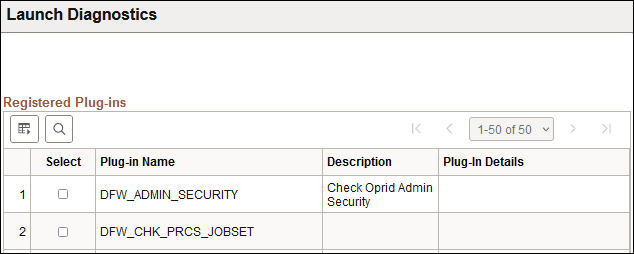
This example illustrates the fields and controls on the Launch Diagnostics page. This is the top portion of the page.
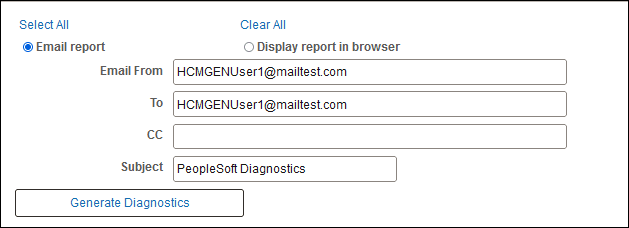
This example illustrates the fields and controls on the Launch Diagnostics page. This is the bottom portion of the page with the Email report option selected.
This page displays a list of available diagnostic plug-ins. Only registered plug-ins appear.
| Field or Control | Description |
|---|---|
|
Plug-In Name |
Displays the name of the application package that defines each diagnostic plug-in. |
|
Select |
Select this check box for each diagnostic plug-in package that you want to run. Click the Select All link to include all of the listed plug-ins, or the Clear All link to exclude all of the listed plug-ins from the diagnostics Note: You must select at least one diagnostic plug-in. |
|
Email report |
Select to generate an email containing HTML and XML copies of the generated diagnostic report. The following standard email fields appear:
Note: Before you can use this option, you must configure the application server domain to handle SMTP email. |
|
Display report in browser |
Select to display the generated HTML diagnostic report in a new browser window. |
|
Generate Diagnostics |
Click to launch the selected diagnostics, and either display or email the resulting report. |
Note:
You cannot select both Display report in browser and Email report simultaneously.