Adding Collection Elements
Use the Add Collection Child or the Add Collection Peer page, depending on whether you want to create a collection child or collection peer element. The Add Collection Child page and the Add Collection Peer page share the same object page name: IB_LOGICALCOLL_SEC.
You access the Add Collection Child and Add Collection Peer pages using the action toolbar on the Document Builder - Documents page.
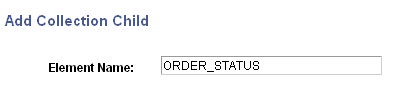
This example illustrates the fields and controls on the Add Collection Child page. You can find definitions for the fields and controls later on this page.
To add a collection element:
-
Access the Document Builder - Documents page ().
-
In the document tree, click the element to which to add a collection child or collection peer element.
-
On the action toolbar, do one of the following:
-
Click theAdd Collection Child button to add a collection child element.
-
Click the Add Collection Peer button to add a collection peer element.
The Add Collection Child or Add Collection Peer page appears, depending on the element you added.
-
-
In the Element Name field, enter a name for the collection element.
-
Click the OK button.
The Document Builder - Documents page appears, and the new collection element appears in the document tree. Note that the collection element icon that appears on the toolbar also appears to the left of the collection element in the document tree.