Adding Enumerated Values
You can define allowed values, or enumerated values, for some primitive data types.
An example of enumerated values is a list of acceptable state abbreviations that can be used in a primitive element called State that is a string.
In the Documents Builder, you can define enumerated values for the following primitive data types:
-
Character.
-
Date.
-
DateTime.
-
Integer.
-
String.
-
Time.
Use the Set Enumerated Values page (IB_ENUM_SEC) to set enumerated values. You access the page by using the Add Enumerated Values link that appears on the Document Builder - Documents page when you define properties for one of the primitive data types in the previous list.
The following example shows the Add Enumerated Values link that appears when you define a primitive element called State that is a string:
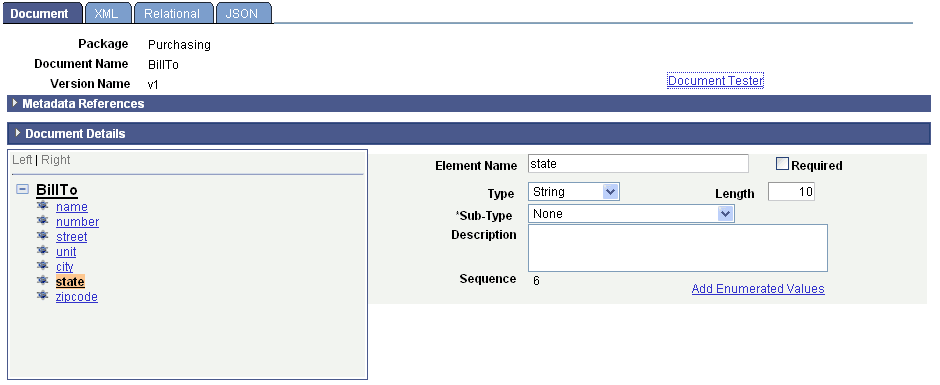
Click the Add Enumerated Value link to access the Set Enumerated Values page.
This example illustrates the fields and controls on the Set Enumerated Values page. You can find definitions for the fields and controls later on this page.
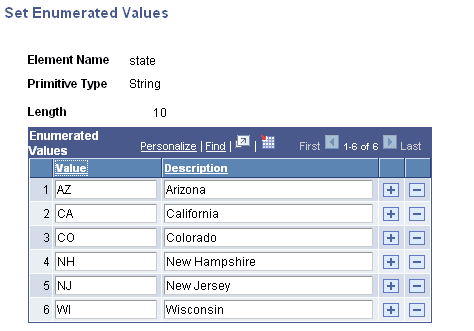
To set enumerated values, enter an acceptable value in the Value field and then a description for the value in the Description field. In the previous example, the Value column shows the acceptable abbreviations and values that the State element can contain for several of the United States. The Description field shows information about each of the values.
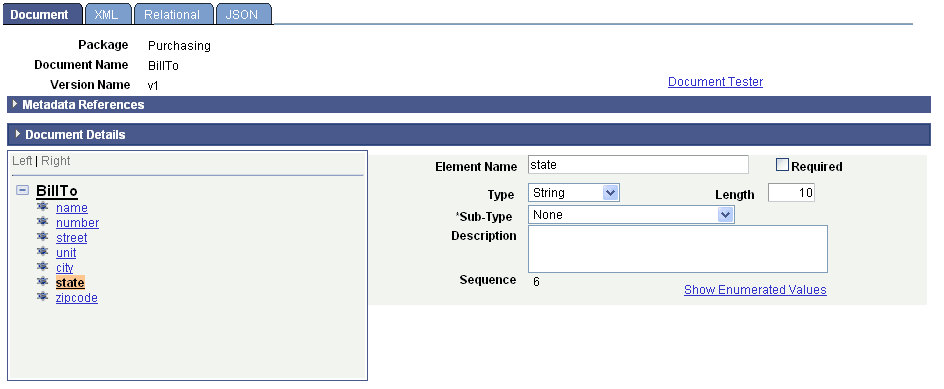
When enumerated values exist for a primitive data type, when you are working in the properties section a Show Enumerated Values link appears instead of a Set Enumerated Values link.
The following example shows the properties section for the State element after enumerated values are defined. Note that a Show Enumerated Values link appears. Click the link to view or modify defined enumerated values.
To set enumerated values:
-
Select
The Documents Builder - Documents page appears.
-
In the document tree, select the element for which to add enumerated values.
The properties for the element appear on the right side of the page.
-
Perform one of the following actions:
-
Click the Add Enumerated Values link to add values.
This link appears if no enumerated values are defined for the element.
-
Click the Show Enumerated Values link to modify existing values.
This link appears if enumerated values are already defined for the element.
-
-
Enter enumerated values and descriptions:
-
In the Value field, enter an acceptable value for the element.
-
In the Description field, enter a description for the value.
-
-
Click the Add a Row button (+) to add additional rows of values and descriptions.
-
Click the OK button.
The Documents Builder - Document page appears.