Defining Element Details
The Document Builder - XML page features an element details section where you can define element tag names, prefixes, and other details. To access the page, select PeopleTools, Documents, Document Builder and click the XML tab. The area you use to define element details appears under the XML Schema Details section.
To display the section, select an element. The details that you can define and manage appear on the right side of the page.
This example illustrates the fields and controls on the Document Builder - XML page. You can find definitions for the fields and controls later on this page.
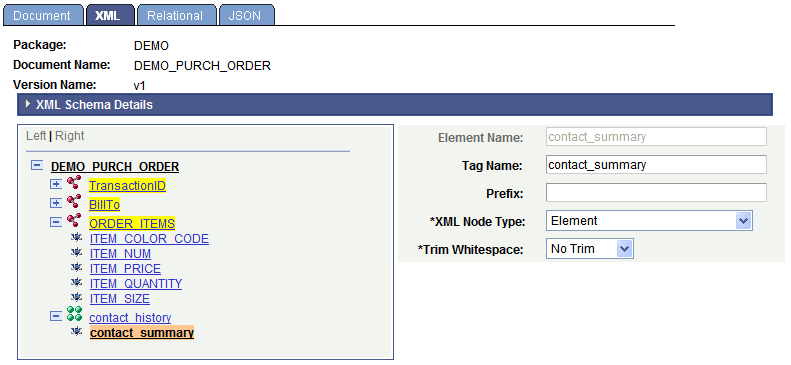
This example shows the element details section that appears when the contact_summary element in the document tree of the DEMO_PURCH_ORDER document is selected. Note that the XML Schema Details section is collapsed:
The following page elements appear in the XML Schema Details section:
| Field or Control | Description |
|---|---|
|
Element Name |
This read-only field displays the name of the selected element. |
|
Tag Name |
(Optional) Enter the tag name to appear in the generated XML schema. By default, the system populates the field with the element name. |
|
Prefix |
(Optional) Enter a prefix for the tag name. |
|
XML Node Type |
From the drop-down list, select the XML node type for the element in the generated XML. The options are:
|
|
Trim Whitespace |
Select whether to trim the leading and trailing whitespace in the generated XML. The options are:
|