Entering Test Values for Primitive Elements
The Document Tester utility enables you to enter test values for primitive elements.
When you select a primitive element in the document tree, a Set Value page (IB_LSTESTER_SEC) appears where you can set a test value for the element.
The following example shows the Set Value page.
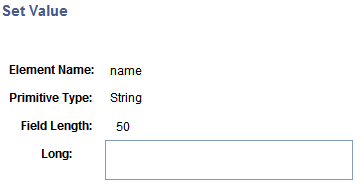
The Element Name field displays the element name with which you're working. The Primitive Type field and Field Length field display the data type and length as defined for the element in the Document Builder.
The name of the field where you enter a test value depends on the data type. In the previous example, the data type is a string, and therefore the system prompts you to enter a Long value. The following table lists the possible labels for the field where you enter a test value:
| Data Type | Primitive Type Field Label | Test Value Field Label |
|---|---|---|
|
Binary |
Bin |
Long |
|
Boolean |
Bool |
Page displays a check box. |
|
Character |
Character |
Char |
|
Date |
Date |
Date |
|
DateTime |
DT |
Datetime |
|
Decimal |
Dec |
Numeric |
|
Integer |
Int |
Numeric |
|
String |
String |
Long |
|
Text |
Text |
Long |
|
Time |
Time |
Time |
The data type and field length that display are those that are defined for the document in the Document Builder.
After you enter test values, each value appears next to the corresponding element in the document tree on the main Document Tester page.
The following example shows the appearance of the document tree for the ShipTo document after test values have been entered:
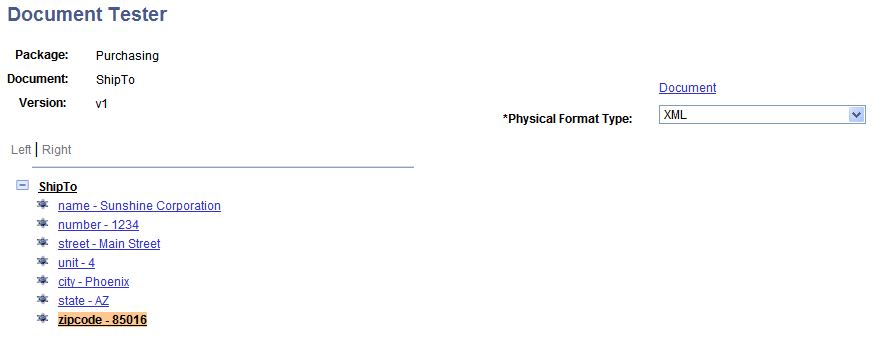
To enter test values for primitive elements:
-
Access the Document Tester ().
-
Click the name of a primitive element for which to enter a test value.
The Set Value page appears.
-
In the Long field, enter a test value.
-
Click the OK button.