Exporting Documents
The Document Builder provides a Document Schema page (IB_LOGICALSCMA_SEC) that enables you to export an XML document schema to a file. To access the page, click the Export button at the bottom of the Document Builder - Documents page.
The following example shows the Document Schema page.
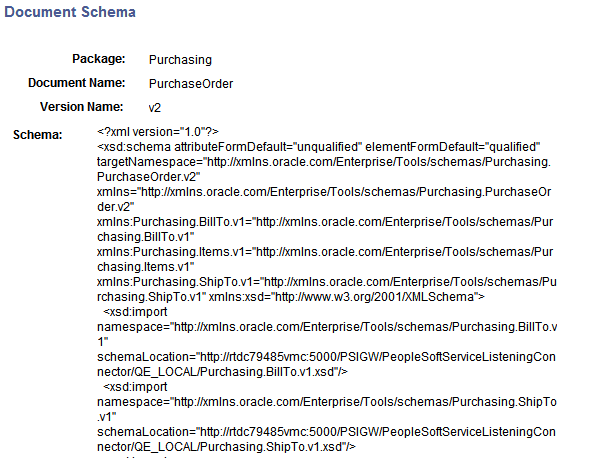
A Save As button appears at the bottom of the Document Schema page. When you click the button, a File Download dialog box appears.
This example shows the File Download dialog box used to export a document schema from the Document Builder.
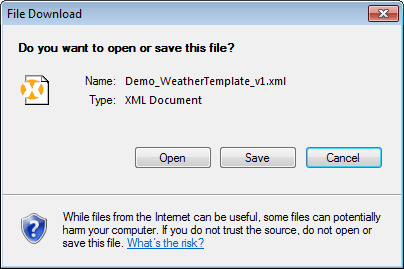
You can save the schema to a file or open it in an XML editor.
The XML schema of the document saved in the database is the schema that the system exports; therefore, you must save any updates to the document so that they are reflected in the exported XML schema.
The export feature exports the entire document definition.
To export a document:
-
Access the Document Builder ().
-
Locate and open the document to export.
The document appears in the Document Builder.
-
At the bottom of the Document Builder page, click the Export button.
The Document Schema page appears.
-
At the bottom of the Document Schema page, click the Save As button.
A File Download dialog box appears.
-
Perform one of the following actions:
-
Click the Save button to save the schema to file.
-
Click the Open button to open the schema in an XML editor of your choice.
-
-
Close the File Download dialog box.
-
On the Document Schema page, click the Return button to go back to the Document Builder - Document page.