Mapping PeopleSoft Records to Documents
Use the Document Builder - Relational page (IB_RELATSCHEMA) to map a PeopleSoft record to a document. To access the page, select and click the Relational tab.
This example illustrates the fields and controls on the Document Builder - Relational page. You can find definitions for the fields and controls later on this page.
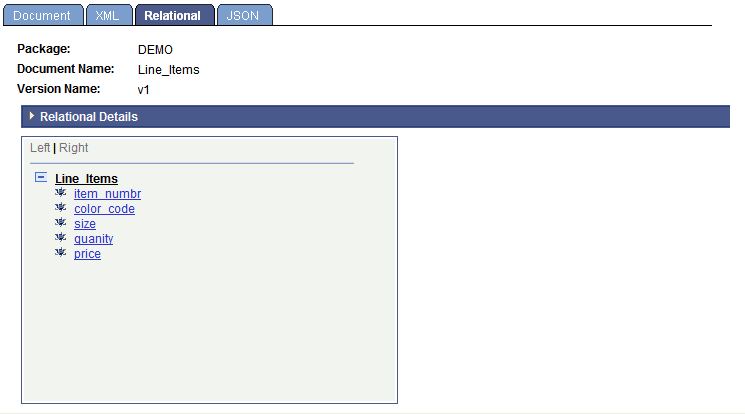
When you first access the page, the Relational Details section is collapsed. The Relational Details section is where you select the PeopleSoft record to map to the document. Click the arrow icon next to the Relational Details label to expand the section.
This example illustrates the Document Builder – Relational page with the Relational Details section expanded.
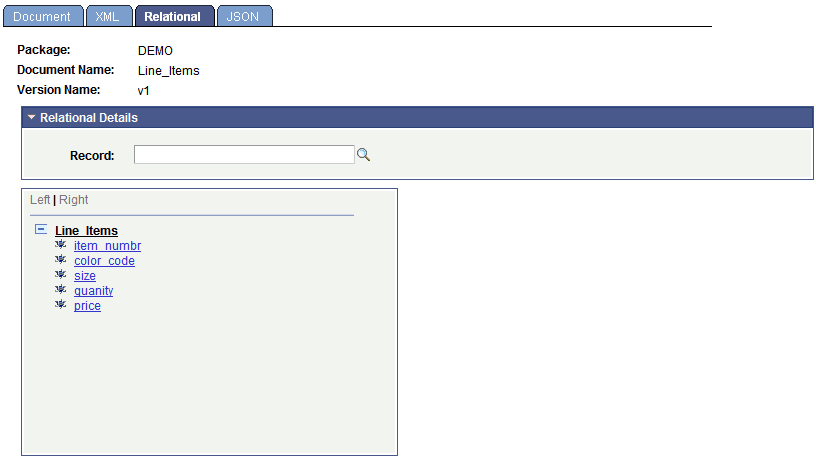
To map a PeopleSoft record to a document:
-
Access the Document Builder - Relational page ( and click the Relational tab).
-
Expand the Relational Details section.
-
In the Record field, enter the name of the PeopleSoft record to map to the document or use the Lookup button to select one.
Before you save the record, you should map the record fields to the document elements. If you attempt to save the definition before mapping the document elements to the fields in the record you specified, the system displays an error message. You can save the record without defining all of the field maps and return to the definition at a later time to specify the remaining maps. However, the document will fail validation until you define all maps.
The procedure for mapping elements to record fields is described in the next section.