Mapping Document Elements to PeopleSoft Record Fields
After you map a PeopleSoft record to a document, you must map the document elements to the record fields.
After you map a record to a document, when you select an element in the document tree, a properties section displays to the right of the document tree, where you can map the element to a record field.
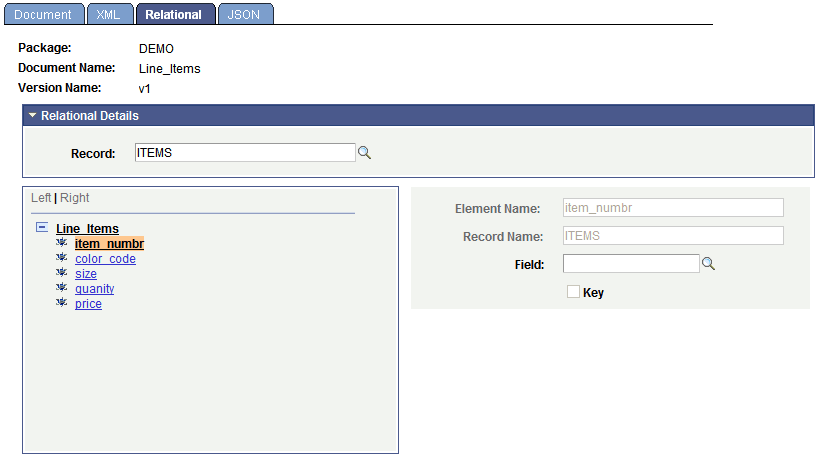
The following example shows a record called ITEMS that is mapped to the document Line_Items. In the document tree, the element item_numbr is selected, and the section to map a record field to the element appears on the right side of the page.
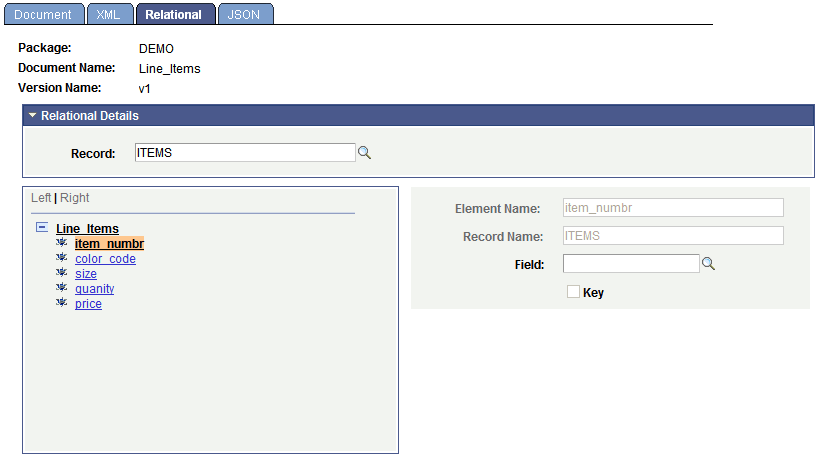
In the properties section, you can enter a field name or use the Lookup button to select from all fields in the record. You also have the option of specifying the field as a key field.
This example shows that the record field ITEM_NUM has been selected to be mapped to the item_numbr element.
To map document elements to PeopleSoft record fields
-
In the document tree, click the name of an element.
The relational elements properties section appears on the right side of the page.
-
In the Field field, enter the name of the field to map to the element, or use the Lookup button to select one.
-
Select the Key check box if the field to define the field as a key field.
-
Repeat steps 1 through 3 to map each element in the document tree.
-
Click the Save button.