Renaming Documents in the Document Administration Component
You can also rename a document in the PeopleSoft system using the Delete/Rename Document page (IB_DOCUMENT_ADMIN) located in the Document Administration component. To access the page, select .
This example illustrates the fields and controls on the Delete/Rename Documents page. You can find definitions for the fields and controls later on this page.
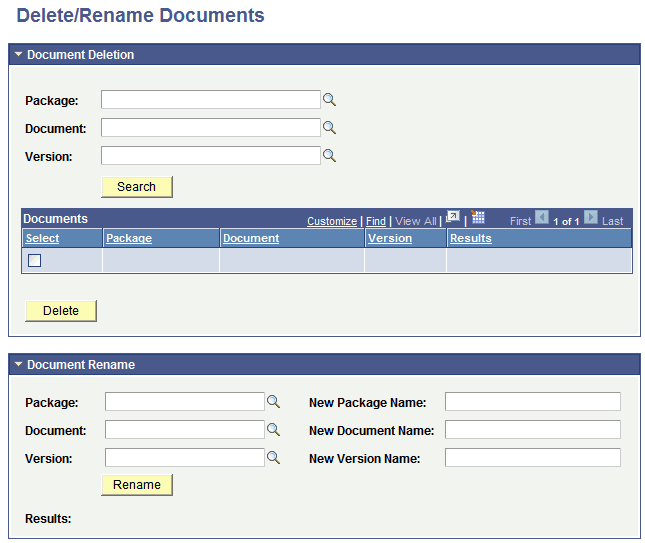
Use the Document Rename section at the bottom of the page to rename a document.
To rename a document in the Document Administration component:
-
Access the Delete or Rename Document page ().
The Delete/Rename Document page appears.
-
At the bottom of the page, click the arrow icon next to Document Rename to expand the section if it is not already expanded.
-
On the left side of the section, enter the details of the existing document to rename:
-
In the Package field, enter the package name or click the Lookup button to search for one.
-
In the Document field, enter the document name or click the Lookup button to search for one.
-
In the Version field, enter the version number or click the Lookup button to search for one.
-
-
On the right side of the section, enter the new naming details of the document. Keep in mind that at least one of the values you enter must be different than the original name:
-
In the New Package Name field, enter a package name.
-
In the New Document Name field, enter a document name.
-
In the New Version Name field, enter a version number.
-
-
Click the Rename button.
The Results field at the bottom of the page indicates if the action was successful.