Renaming Documents in the Document Builder
You can rename a document in the Document Builder, using the Rename Document As page (IB_LOGICALCOPY). To access the page, select and click the Rename button.
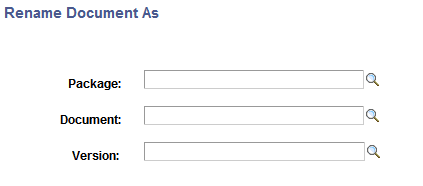
This example illustrates the fields and controls on the Rename Document As page. You can find definitions for the fields and controls later on this page.
To rename a document in the Document Builder:
-
Access the Rename Document As page ( and click the Rename button).
The Rename Document As page appears.
-
Rename the document by selecting values for the following fields. Keep in mind that at least one of the fields must be changed to a value different than the original document name:
-
In the Package field, enter a package name or click the Lookup button to search for one.
-
In the Document field, enter a document name or click the Lookup button to search for one.
-
In the Version field, enter a version number or click the Lookup button to search for one.
-
-
Click the OK button.
The renamed version of the document appears in the Document Builder - Document page.