Entering Advanced Feed Options for Query Feeds
Access the Advanced Feed Options page (click the Advanced Options link on the Publish Feed Definition page).
This example illustrates the fields and controls on the PSQuery Data Type - Advanced Feed Options page. You can find definitions for the fields and controls later on this page.
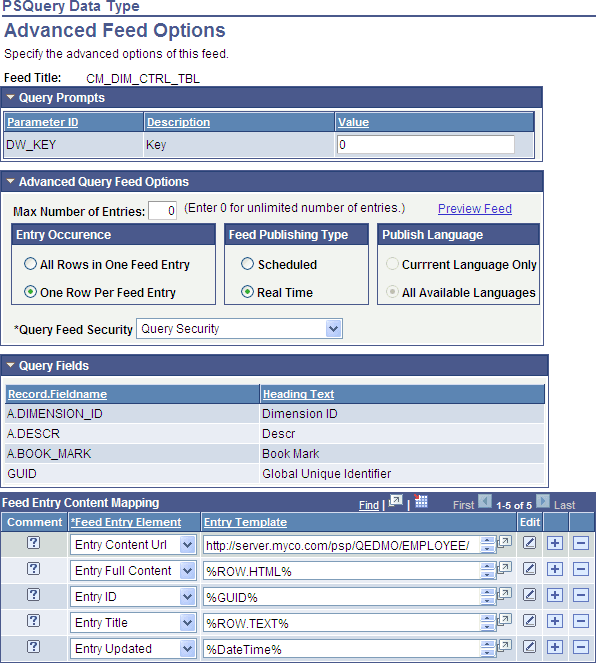
Query Prompts
Any fields that are query prompts appear in this area. Enter the prompt values that will be used to run the query before you publish the feed.
Important:
If you do not enter necessary prompt values, then the published feed contains no entries.
Advanced Query Feed Options
| Field or Control | Description |
|---|---|
|
Max Number of Entries |
Enter the maximum number of entries that the feed should return to the user. Enter 0 for unlimited entries up to the maximum row limit specified on the Feed Options page, which is 300 by default. Note: You can configure the upper limit on the Feed Options page. |
|
Preview Feed |
Click to save and temporarily publish and view the feed. |
|
Entry Occurrence |
Select from these options: All Rows in One Feed Entry: Select this option to have the feed reader display one entry for the entire query. One Row Per Feed Entry: Select this option to have the feed reader display one entry for each row returned by the query. |
|
Feed Publishing Type |
Select from these options: Scheduled: Select this option to use Query Scheduler to schedule the query to run once and be stored in the Integration Broker queues. This option provides superior performance, but it should be used when the data changes infrequently. If you select this option, you may select whether to publish the feed in the language of the current user or all available languages. See Query: Scheduling Queries. Real Time: Select this option to run the query in real-time each time a user requests that this query feed be updated in the feed reader. If you select this option, you can only publish in the language of the user configuring the feed. |
|
Publish Language |
Active only when Feed Publishing Type is set to Scheduled, this field determines the languages in which the system publishes the query feed. Select from these options: Current Language Only: Select to publish the query feed in the language of the content owner. All Available Languages: Select to publish the query feed in all translated languages in your database. |
|
Query Feed Security |
Select from these options: Public Feed: Select to make the query feed available to all users. This option is available with all Feed Publishing types. Note: The user context for processing the query is the default user on the ANONYMOUS node. Query Security: Select to use Query security as the basis for the feed-level security. This option is available only with the Real Time Feed Publishing type. When you define this type of query feed security, only the users who have rights to modify the query in Query Manager can find and view the query feed. DistributionList/QuerySecurity: Select to use the Query distribution list in Report Manager as the basis for feed-level security. This option is available only with the Scheduled Feed Publishing type. When you define this type of query feed security, only the users that are on the distribution list when the query feed is scheduled to run from the Schedule Query Request dialog box can find and view the feed. |
Query Fields
This grid displays the fields that are available to the query as defined in the query definition in Query Manager. The grid is display-only.
Feed Entry Content Mapping
The fields in the Feed Entry Content Mapping grid on the Advanced Feed Options page enable you to create a template for the query data that is used to generate each feed entry. You select feed entry elements and either use the given template or build one of your own using the Feed Element Mapping Builder. This information, when published, determines how each entry appears to the user.