Mapping Feed Entry Elements to Feed Entry Templates
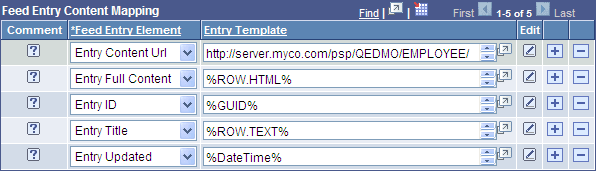
The Feed Entry Content Mapping grid appears at the bottom of the PSQuery Data Type - Advanced Feed Options page.
This example illustrates the fields and controls on the Feed Entry Content Mapping grid. You can find definitions for the fields and controls later on this page.
You can use one of three methods to edit feed entry templates for feed entries:
-
Directly in the Entry Template field in the Feed Entry Content Mapping grid.
-
In a modal window when you click the Display Entry Element in Modal Window button.
-
In Mapping Builder when you click the Edit button.
Important:
Unless you are aware of the proper encodings to use, you should use the Mapping Builder to edit or create feed entry templates.
See Using Mapping Builder to Edit Feed Entry Templates.
The Feed Entry Content Mapping grid has these fields:
| Field or Control | Description |
|---|---|
|
|
Click to display more information about this feed entry element in a modal window. |
|
Feed Entry Element |
Each feed entry element is a property of an entry that can be interpreted and displayed by a feed reader. Note: Not all feed readers display all elements. Consult the documentation for your feed reader. |
|
Entry Template |
A template is a string
that encloses bind variables inside Feed entry templates support these bind variable types:
|
|
|
|
|
|
Click to access the Feed Element Mapping Builder page to use the Mapping Builder to modify the feed entry template. |
 Comment
 Display Entry Element in Modal Window
 Edit
Edit
This table describes the values that you can select for the Feed Entry Element field:
| Feed Entry Element Field | Description | Action of Feed Reader | Feed Entry Template Values | Runtime Processing |
|---|---|---|---|---|
|
Entry Title |
This element is a brief, single-line explanation of the feed entry. Only one entry title can exist per entry. |
The reader displays the title as indicated by the template. |
Any template containing any bind variable. Can have HTML tags but must be only one line. |
The system escapes the HTML as well as XML characters. |
|
Entry Content URL |
This element is the URL to the PeopleSoft application page or other content. Only one entry content URL can exist per entry. |
The reader displays an active link to enable the user to navigate to this URL. |
Can map this to a field containing a URL, a computed field, or a static URL which has query columns as parameters |
The system escapes no characters. Make sure that the URL is valid and confirm that you can use it as an attribute. |
|
Entry Categories |
This element defines the category of an entry. Multiple entries can belong to the same category, and one entry can belong to multiple categories. |
The reader organizes and filters entries based on values. |
Any template containing any bind variable, but user should consider short values for ease of organization. |
The system escapes the HTML as well as XML characters. |
|
Entry ID |
This element is a permanent, universal identifier. Only one ID can exist per entry. |
The reader detects changes to an existing entry and presents modifications of the existing entry instead of creating a new entry, while ignoring unchanged entries. |
Any template containing any bind variable. |
The system escapes the HTML as well as XML characters. |
|
Entry Updated |
This element is the date and time that the entry was most recently modified. Only one update date can exist per entry. |
The reader uses this entry to determine, in conjunction with the ID, whether to update the data in the entry. |
Static value in PeopleTools date and time format. Dynamic value present in any date time query column. System variable |
Values that are PeopleTools date time formatted will be converted to atom specific date time format. |
|
Entry Published |
This element is the date and time when the entry was originally created. Only one publish date can exist per entry. |
The reader uses this entry to determine the maximum age of the data. |
Static value in PeopleTools date and time format. Dynamic value present in any date time query column. System variable |
Values that are PeopleTools date time formatted will be converted to atom specific date time format. |
|
Entry Author |
This element pertains to information about the creator, owner, and author of this entry. Only one author can exist per entry. |
The reader organizes and filters entries based on the value of this field. The reader can use this field to send email to the author. |
Static values in this format: Author name and email ID can be mapped to query columns or system variables. |
The system extracts the email address extracts from [] and the name from the value before the brackets. Note: The brackets may be left empty, but they must be present for the system to correctly process this entry. The system escapes the HTML as well as XML characters. |
|
Entry Contributors |
This element pertains to information about various parties involved in this entry. Multiple contributors can exist per entry. |
The reader organizes and filters entries based on the value of this field. The reader can use this field to send email to the author. |
Static values in this format: Contributor name and email ID can be mapped to query columns or system variables. |
The system extracts the email address extracts from [] and the name from the value before the brackets. Note: The brackets may be left empty, but they must be present for the system to correctly process this entry. The system escapes the HTML as well as XML characters. |
|
Entry Description |
This element is a brief description about the entry, which can be more detailed information than a title but less information compared to full content. |
The reader presents more information than the title but less than the full content, while providing a link to the full content. |
Any template containing any bind variable. HTML tags. |
The system escapes the HTML as well as XML characters. |
|
Entry Enclosures |
This element contains other content types accessible using a URL, for example images and mp3 files. Multiple enclosures signifying multiple attachments can exist per entry. |
The reader can automatically download content and display it in place or enable the viewer to access it by using external tools based on the content type. |
URL to the resource, its content, and its length in bytes. Use this format: |
The system escapes the HTML as well as XML characters. |
|
Entry Full Content |
This element is the body of the entry. Only one full content can exist per entry. |
The reader can display the content of the entry by default or upon user request. |
Any template containing any bind variable. HTML tags. |
The system escapes the HTML as well as XML characters. |
|
Expires |
This element is the date time when this entry is invalid and should be considered outdated. Only one expiration date time can exist per entry. |
The reader determines when to discard this entry. |
Static value in PeopleTools date and time format. Dynamic value present in any date time query column. |
Values that are PeopleTools date time formatted will be converted to atom specific date time format. The system escapes the HTML as well as XML characters. |
|
Max Age |
This element is the length of time in milliseconds until the entry will be valid after the Published or Updated date and time. Only one maximum age can exist per entry. |
The reader determines when to discard this entry. |
Static number or mapped to a query column, which results in number. |
The system escapes the HTML as well as XML characters. |
|
Entry Copyright |
This element contains the copyright information. Only one copyright can exist per entry. |
The reader displays the copyright information upon request. |
Any template containing
any bind variable. The |
The system escapes the HTML as well as XML characters. |