Using Mapping Builder to Edit Feed Entry Templates
Access the Feed Element Mapping Builder page (click the Edit button next to a feed entry template in the Feed Entry Content Mapping grid).
This example illustrates the fields and controls on the Advanced Feed Option — Feed Element Mapping Builder page.
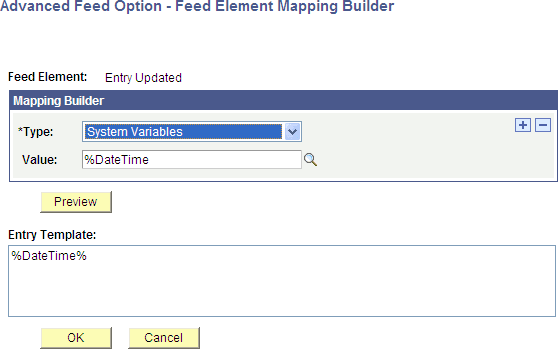
You edit feed entry templates using Mapping Builder, which enables you to create custom output for feed entries using your own feed entry templates. You do this by assembling various combinations of static text and variable elements.
Note:
Currently, sharing templates among feed administrators is not supported. However, you can use the Download icon to export the grid values so that they can be used with other query feeds.
Assembling Feed Entry Template Elements
You can edit these feed entry elements by assembling combinations of element types:
-
Entry Author
-
Entry Categories
-
Entry Content URL
-
Entry Contributors
-
Entry Copyright
-
Entry Enclosures
-
Entry ID
-
Entry Published
-
Entry Updated
-
Expires
-
Max Age
-
Entry Description
-
Entry Full Content
-
Entry Title
To assemble template elements into a feed entry template:
-
On the Advanced Options page, click the Edit button associated with the feed entry template you want to edit.
-
In the Mapping Builder grid, select the Type of element to add to the feed entry template.
-
Click the + button to add another element.
-
Continue adding rows and constructing the feed entry template.
-
Click the Preview button.
-
Click the OK button.
This example shows an assembled feed entry template:
This example illustrates the fields and controls on the Advanced Feed Option — Feed Element Mapping Builder page showing an assembled feed entry template. You can find definitions for the fields and controls later on this page.
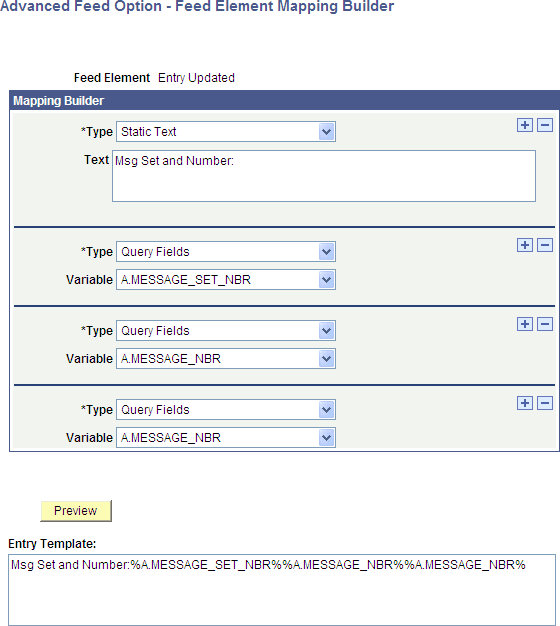
The Mapping Builder fields are described as follows.
| Field or Control | Description |
|---|---|
|
Type |
Select from these Mapping Builder types to assemble the feed entry template: Message Catalog Explanation Message Catalog Text Query Fields Static Text System Variables Templates |
|
Message |
This field is visible when the Type field value is Message Catalog Explanation and Message Catalog Text. Enter the message number to appear in the entry. Note: Use the Message Catalog rather than static text to generate a template that is language independent. |
|
Msg Set (message set) |
Visible when the Type field value is Message Catalog Explanation and Message Catalog Text. Enter the message set number to appear in the entry. Note: Use the Message Catalog rather than static text to generate a template that is language independent. |
|
Text |
This field is visible when the Type field value is Static Text. Enter the text that you want to appear in the entry. Note:
To have a percent sign
appear in the text of the template, it needs to escaped using |
|
Value |
This field is visible when the Type field value is System Variables. Select from any of the available system variables. See PeopleCode Language Reference: System Variables Reference. |
|
Variable |
This field is visible when the Type field value is Templates or Query Fields. When the Type field value is Templates, select from these Template options:
When the Type field value is Query Fields, select from any field comprising the query definition. |