Step 4: Specifying Publishing Options
Access the Feed Publishing Wizard - Specify Publishing Options page (click the Next button on the Feed Publishing Wizard - Select Data Source Parameters page).
This example illustrates the fields and controls on the Feed Publishing Wizard - Specify Publishing Options page. You can find definitions for the fields and controls later on this page.
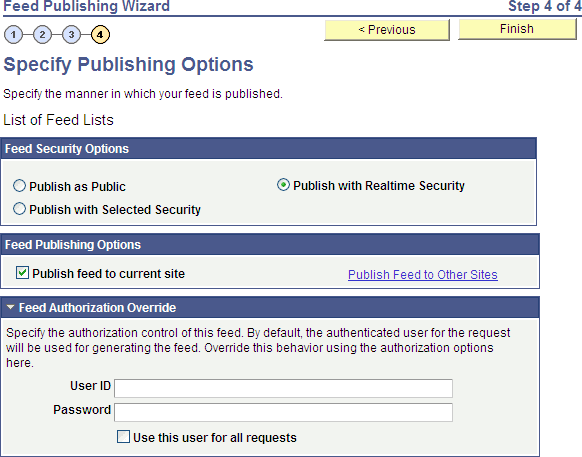
Use the Specify Publishing Options page to specify the publishing options for a feed definition.
A feed definition can be published to multiple sites, or to no site at all. Publishing a feed definition to a site makes that feed available to all users of that site. Once published, a feed can be removed from a site by deselecting the publish option. Users will no longer be able to access and view an unpublished feed; however, the feed definition for an unpublished feed can still be edited using the Feed Publishing Wizard.
Feed Security Options
For query feeds and worklist feeds, the Feed Security Options group box is hidden. For worklist feeds, real-time security is always used. For query feeds, security can be set in Step 2 of the Feed Publishing Wizard.
| Field or Control | Description |
|---|---|
|
Publish as Public |
Select to make the feed available for public access. |
|
Publish with Realtime Security |
Select to have the system check the data source object to determine whether the viewer has access to the feed in real time. This option is the default for new feed definitions. |
|
Publish with Selected Security |
Select to make the feed available based on the viewer's role-based permission lists. When you select this type of security, the Selected Security grid appears, enabling you to set role and permission list security. Note: User-based permission lists, such as the Primary Permission List, are not applied with this type of security. |
Feed Publishing Options
If the Template option was selected in Step 1, the Feed Publishing Options group box is hidden.
| Field or Control | Description |
|---|---|
|
Publish feed to current site |
Select this option to publish the feed to the current site. Deselect this option to remove the published feed from the current site. |
|
Publish Feed to Other Sites |
Click to save the feed definition and publish it to additional sites. |
Feed Authorization Override
By default, the authenticated user who requests a feed is used for generating the feed. You can override the default behavior by specifying a user ID and password to be used for requests for this feed. Doing so ensures every user who requests the feed sees the same result. This can be useful for public feeds.
WARNING:
Use care when selecting a user ID for this override as this can potentially give unauthorized users access to feed data that they would not normally be able to see.
| Field or Control | Description |
|---|---|
|
User ID |
Specify the user ID to use as the override for requests for this feed. |
|
Password |
Specify the password for this user. |
|
Use this user for all requests |
Select this option to use the specified user ID and password as the authentication override. If this option is not selected, then the user ID and password data is merely saved, but not used. |
Actions
| Field or Control | Description |
|---|---|
|
Finish |
Click the Finish button to publish the feed definition. Note: The Finish button appears for new feed definitions only. Use the Save button for already published feed definitions. |
|
Save |
Click the Save button to publish the feed definition. Note: The Save button appears for already published feed definitions only. Use the Finish button for new feed definitions. |
|
Preview Feed |
Click to preview the published feed. Note: This link appears for already published feed definitions only. |
|
Save As Template |
Click to save the existing feed definition as a feed template. After a feed definition is saved as a feed template, both will exist as separate entities. The original feed definition can be used normally as any other feed and the feed template can be used while creating new feeds or editing existing feed definitions. The feed template will be saved with the same security as that of the feed definition. Note: This link appears for already published feed definitions only. |