Step 3: Specifying Data Source Parameters
Access the Feed Publishing Wizard - Select Data Source Parameters page (click the Next button on the Feed Publishing Wizard - Select Data Source page).
This example illustrates the fields and controls on the Feed Publishing Wizard - Select Data Source Parameters page. You can find definitions for the fields and controls later on this page.
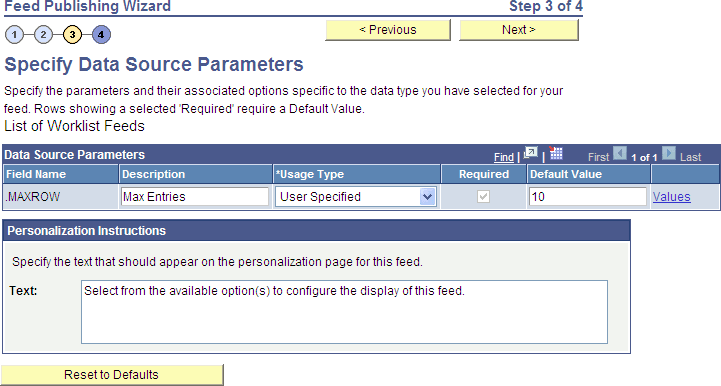
Use the Select Data Source Parameters page to configure each data source parameter, such as the parameter's description, usage type, and default value. Each data source parameter can have one value only. Required parameters must have a default value assigned.
Note:
This page is accessible only when you are building a feed definition with a data source that allows modification of one or more data source parameters.
| Field or Control | Description | ||||||||||||||||||||||||||||||||||||
|---|---|---|---|---|---|---|---|---|---|---|---|---|---|---|---|---|---|---|---|---|---|---|---|---|---|---|---|---|---|---|---|---|---|---|---|---|---|
|
Field Name |
Displays the name of the data source parameter. |
||||||||||||||||||||||||||||||||||||
|
Description |
Displays a description of the data source parameter. |
||||||||||||||||||||||||||||||||||||
|
Usage Type |
The usage type defines how the parameter gets a value at runtime:
|
||||||||||||||||||||||||||||||||||||
|
Required |
A data source parameter is defined as required in the application class for the feed data type. This check box is selected but disabled except for user-specified parameters. All required parameters should be assigned a default value before proceeding to step 4 in the wizard. |
||||||||||||||||||||||||||||||||||||
|
Default Value |
Enter the default value for the data source parameter. The data type of the value you enter should be the same as the parameter’s data type. However, the entered value is not type checked by the Feed Publishing Wizard; the type should be checked by and any errors reported by the application class for the feed data type. Consider these guidelines when entering a default value:
|
||||||||||||||||||||||||||||||||||||
|
Values |
Note: The Values link is displayed for parameters with an associated translate table, Yes/No type of parameters, or if you select User Specified as the usage type. Click Values link to access the Feed Publishing Wizard - Specify Data Source Parameter Values page. |
||||||||||||||||||||||||||||||||||||
|
Text |
Note: If you select User Specified as the usage type, the Personalization Instructions group box is displayed. Use the Text field to enter custom personalization instructions for the feed. These personalization instructions appear on the personalization page of the feed. Note: Personalization instructions must be translatable. |
Specifying Prompt Values for Data Source Parameters
Access the Feed Publishing Wizard - Specify Data Source Parameter Values page (click a Values link on the Feed Publishing Wizard - Select Data Source Parameters page).
This example illustrates the fields and controls on the Feed Publishing Wizard - Specify Data Source Parameter Values page. You can find definitions for the fields and controls later on this page.
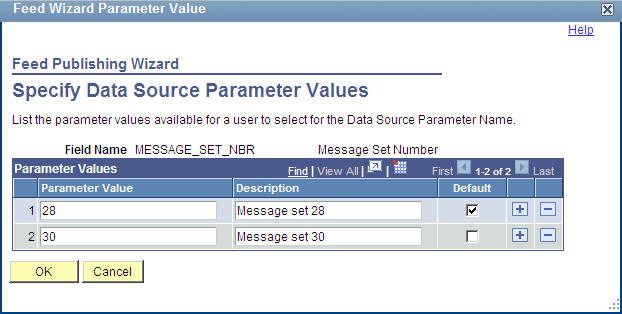
Use the Specify Data Source Parameter Values page to specify the prompt values that are displayed to users when they personalize the feed.
For Yes/No type of parameters and for parameters associated with a translate table, you cannot modify or add to the values listed on this page. However, for user-specified parameters, you can add, edit, or delete value-description pairs. In addition, you can specify the default value for the data source parameter.
| Field or Control | Description |
|---|---|
|
Parameter Value |
Specify the parameter value. |
| Field or Control | Description |
|---|---|
|
Description |
Provide an optional description of the parameter value. |
| Field or Control | Description |
|---|---|
|
Default |
Select one value as the default value. If the parameter is required, then a default value is required; otherwise, it is optional. |