Step 2: Selecting a Data Source
Access the Feed Publishing Wizard - Select Data Source page (click the Next button on the Feed Publishing Wizard - Specify Feed Properties page).
This example illustrates the fields and controls on the Feed Publishing Wizard - Select Data Source page. You can find definitions for the fields and controls later on this page.
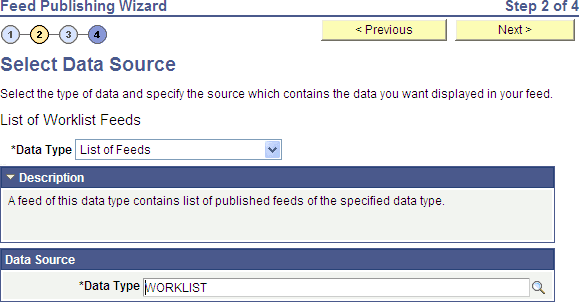
Use the Select Data Source page to select the feed data type and then the data source settings for that feed data type.
| Field or Control | Description |
|---|---|
|
Data Type |
Select the feed data type from the drop-down list of active feed data types. |
|
Data Source |
Specify the data source settings. Typically, you will need to select a specific data source; however, depending on the feed data type, there could be zero to three data source settings. |
Note:
After selecting a data source, you can save the feed definition. However, saving the feed definition is not the same as publishing the feed. You must complete step 4 in the wizard to publish a feed.
Specifying Additional Query Feed Options
If the selected feed data type is PS Query Feeds and you have selected the query data source, then additional grids are displayed for advanced options, query fields, and feed entry content mapping.