Using the My Feeds Page
Access the My Feeds page (click My Feeds in the Main Menu).
This example illustrates the fields and controls on the My Feeds page. You can find definitions for the fields and controls later on this page.
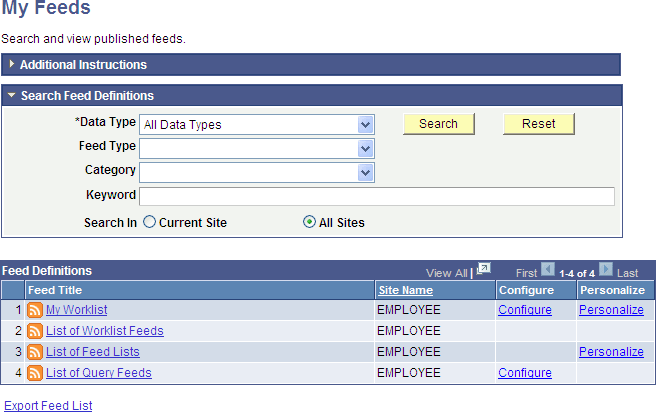
Use the My Feeds page to search for and view the list of published feeds to which you have access.
Search Feed Definitions
| Field or Control | Description |
|---|---|
|
Data Type |
Select from the following feed data types:
Note: The previous list includes only the base feed data types delivered with PeopleTools. The results can differ on your system depending which other PeopleSoft applications you have installed and whether any custom feed data types have been developed. |
|
Feed Type |
Select from the following feed types:
|
|
Category |
Select from the feed categories defined on your system. |
|
Keyword |
Enter a keyword to narrow the search criteria. Keywords search the Feed ID, Feed Title, and Description fields, and are not case sensitive. |
|
Search In |
Select from the following options to search for feeds:
|
|
Search |
Click the Search button to return the list of available feeds that satisfy the search criteria that you entered. |
|
Reset |
Click the Reset button to clear the search results and reset all search criteria to their default values. |
|
Export Feed List |
Click this link to export the current search results in the Feed Definitions grid to a file in OPML 2.0 format. You can import OPML files into third-party feed readers, and you will be able to subscribe to each feed in the list of feeds in the exported file. This link is visible only when a search returns one or more values. |
Feed Definitions
This grid lists the feeds that match the search criteria and that you have permission to access.
| Field or Control | Description |
|---|---|
|
Feed Title |
Click the link for a feed title to view the feed document in a separate browser window. |
|
Site Name |
Displays the site to which the feed has been published. Note: The Site Name column appears when the All Sites option is selected. |
|
Configure |
Click a Configure link to configure the feed as an administrator for this site. Note: The Configure link appears only for those feeds that have been defined in the Feed Publishing Wizard with Admin Specified data source parameters. |
|
Personalize |
Click a Personalize link to personalize the feed by specifying user personalization values. Note: The Personalize link appears only for those feeds that have been defined in the Feed Publishing Wizard with User Specified data source parameters. |
Personalizing a Feed
Access the Personalize feed page (click a Personalize link on the My Feeds page).
This example illustrates the fields and controls on the Personalize List of Worklist Feeds page. You can find definitions for the fields and controls later on this page.
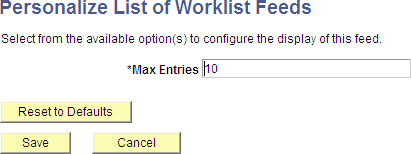
Use the Personalize feed page to set user personalization values for the feed. Only data source parameters defined as User Specified in the feed definition will appear on this page.
| Field or Control | Description |
|---|---|
|
Reset to Defaults |
Click the Reset to Defaults button to reset all parameter values to their system default values stored with the feed definition. |
Configuring a Feed
Access the Configure feed page (click a Configure link on the My Feeds page).
This example illustrates the fields and controls on the Configure List of Query Feeds page. You can find definitions for the fields and controls later on this page.
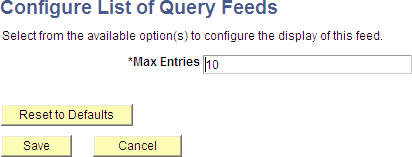
Use the Configure feed page to set administrator-specified values for the feed. Only data source parameters defined as Admin Specified in the feed definition will appear on this page.
| Field or Control | Description |
|---|---|
|
Reset to Defaults |
Click the Reset to Defaults button to reset all parameter values to their system default values stored with the feed definition. |