Creating Group Box Header Extensions
You can create group box header extensions to display additional information and actions related to the contents of the primary group box. Three types of header extensions can be defined:
-
Textual Info: This textual information is placed immediately to the right of, and becomes part of, the group box title. Its purpose is to provide short, text-only information about the group box and its contents.
-
Actionable Info: This clickable control is placed immediately to the right of the textual information (if that extension has been defined). Its purpose is to provide a clickable button or icon that displays additional information about the group box and its contents in a modal window or a message box, or that transfers the user to another page containing the additional information.
-
Action Items: One or more action items are placed at the far right of the group box header. Each action item is a clickable button or icon representing an action associated with the group box contents. For example, actions can be, but are not limited to, adding items, deleting items, a pop-up menu, transferring to another page, and so on.
In this example, the primary group box title appears at the left followed by textual information. Each element of the textual information is preceded by a dot. The actionable information icon immediately follows the textual information. Two action items are displayed at the right margin of the group box header.

To create and associate header extensions with a primary group box:
-
Create one or more group boxes of type Group Box Header Extension.
-
Add one or more controls to each group box depending on the type of extension you are defining. See the following sections for additional information.
-
Create the primary group box if it does not exist already:
-
On the Label tab, specify the label for the group box.
-
On the Fluid tab, select either Default or Container as the group box type.
-
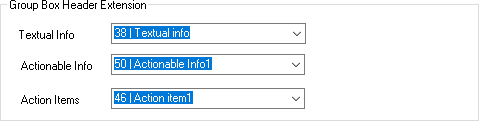
On the Fluid tab under Group Box Header Extension, select one or more extensions, which are identified by
tab_order_# | Group_Box_Label.This example shows selection of group box header extensions.
-
Textual Info Extensions
Add one or more of these display-only text controls inside the group box:
-
Check box – On the Use tab, also select Text Only as the display-only appearance.
-
Drop-down list box – On the Use tab, also select Text Only as the display-only appearance.
-
Edit box.
-
HTML area – Use inline HTML tags only. No interactive HTML elements can be used. In addition, do not use block-level tags, such as div, p, section, and so on.
-
Long edit box – On the Use tab, also select Expand Field When Display Only.
-
Static text
In addition:
-
All controls must be set to Display Only.
-
If you wish to add a dot separator before each text field displayed in the group box header, add the psc_dot-before style to the extension group box itself. Alternatively, you can add the psc_dot-before style to individual text controls to add a dot before that control only. For an HTML area, you must add either ps-text or ps_box-value to the HTML elements inside the HTML area. For example:
<span class="ps-text">Simple <i>HTML</i> Area</span>
Actionable Info Extensions
Add one actionable control that defines a clickable button or icon that displays additional information about the group box and its contents in a modal window or a message box, or that transfers the user to another page containing the additional information.
Action Item Extensions
Add one or more actionable controls that defines an action item as a clickable button or icon representing an action associated with the group box contents. For example, actions can be, but are not limited to, adding items, deleting items, a pop-up menu, transferring to another page, and so on
Additional Considerations
When implementing group box header extensions, consider this additional information:
-
Group box header extensions are not supported for group boxes used as grouplets.
-
Group box header extensions are also not supported for group boxes within grids. However, extensions are supported for group boxes within scroll areas.
-
Do not assign the same group box header extension to more than one main group box on the page.