Subscribing to Events
You can use one of several methodologies to subscribe an endpoint to an event or event collection:
-
Using JavaScript, the event data is published using the JavaScript Object Notation (JSON) format:
-
Subscribe to a specific event.
-
Subscribe to an event collection.
-
-
Using PeopleCode.
For custom endpoint subscriptions, create an object of the PSEvent class to subscribe to the event.
-
Using Interwindow Communication (IWC).
Subscribing to an Event Using JavaScript
Use the Subscribe JavaScript function to subscribe an endpoint to an event:
Subscribe(EVENT_NAME, Callback_Function_Name)| Field or Control | Description |
|---|---|
|
EVENT_NAME |
The name of the event that the endpoint is being subscribed to. |
|
Callback_Function_Name |
JavaScript function invoked when the event is published on the server. |
For example:
Subscribe("PRCSEVENTS", ProcessHandler);The ProcessHandler JavaScript function is then defined in the code:
function ProcessHandler(EventName, EventData)
{
    if(EventName == "PRCSEVENTS")
// Actual code omitted here ...
}
Subscribing to an Event Collection Using JavaScript
Use the SubscribeCollection JavaScript function to subscribe an endpoint to an event collection:
SubscribeCollection(COLLECTION_NAME, Callback_Function_Name)| Field or Control | Description |
|---|---|
|
COLLECTION_NAME |
The name of the event collection that the endpoint is being subscribed to. |
|
Callback_Function_Name |
JavaScript function invoked when the event is published on the server. |
For example, the Notification window has been subscribed to the PUSHNOTIFICATIONWINDOW event collection using this JavaScript code:
SubscribeCollection("PUSHNOTIFICATIONWINDOW",UpdatePNUI);
The UpdatePNUI JavaScript function is defined as follows:
function UpdatePNUI(EventName, EventData) {
    try {
        var parentNode = document.getElementById('PT_NOTIFY');
         var parentNode_classic=top.document.getElementById('pthdr2notify_div');
        if (parentNode != null  || parentNode_classic!=null) {
            NewNotification(EventData);
        }
    } catch (e) {}
}
Subscribing to an Event Using PeopleCode
For custom endpoint subscriptions, create an object of the PSEvent class to subscribe to the event. Use the Subscribe method, which requires an application class method be defined as the callback:
APPLICATION_PACKAGE:ApplicationClass:MethodNameFor example, the following code creates a subscription for the PRCSEVENTS event:
Local object &EventObject = CreateObject("PSEvent");
Local boolean &SubscriptionHandle = &EventObject.Subscribe("PRCSEVENTS", "PT_CONQRS:CQTEMPTABLES:OnEvent");
Then, implement an application class that defines the callback method for the event subscription:
method OnEvent
   /+ &EventObject as Object +/
   Local object &EventNotifObject = CreateObject("PSEvent");
   /* Actual code omitted here */
end-method;
Subscribing to an Event Using Interwindow Communication (IWC)
Use IWC to subscribe a PeopleSoft page to a published event, where the event model is mapped to page elements, such as fields and grids. Creating a subscription does not require any changes to the page. When the event is published from the server, the page is updated automatically with the event data.
To subscribe to an event through IWC:
-
In the browser, select .
-
Navigate through the portal registry folders and select the content reference definition for the component.
-
Click theIWC Message Events link on the Content Ref Administration page.
-
Select the Add a New Value tab, and click Add.
-
Add a new row on the IWC Message Events page, specifying these values:
-
Event Name: Enter the name of a defined event.
-
Message Event Type: Select Server Sub.
-
-
Click the Map to display the Map Events Data to Page Elements page.
On the Map Events Data To Page Elements page you can map the data of a defined event to a page element.
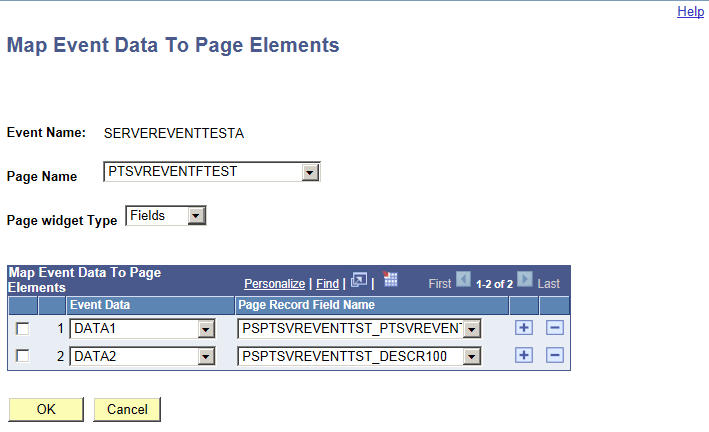
| Field or Control | Description |
|---|---|
|
Event Name |
Displays the event name that was entered on the Content Reference Message Events page. |
|
Page Name |
Select the page where you want the event subscription added. |
|
Page widget Type |
Select either Fields or Grid. |
|
Event Data |
Select one of the data elements defined for the event. The drop-down will display key values if the event data type is KeyValue Pair and record fields if the event data type is PeopleCode Rowset. |
|
Page Record Field Name |
Select the page record field name for the page element to be updated. |