Adding New Translate Values to the LANGUAGE_CD Field
Once you have determined the three-letter PeopleSoft language code for your new language, you must add it to the Translate table so that other PeopleTools utilities and PeopleSoft applications can recognize it.
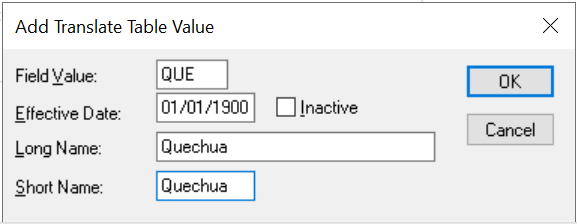
This example illustrates the fields and controls on the Add Translate Table Value dialog box.
To add the language code to the Translate table:
-
In Application Designer, open the field named LANGUAGE_CD.
-
Select .
-
Move to the Translate Values tab and click the Add button.
The Add Translate Table Value dialog box appears.
-
Add the new three-letter language code and a description of your new language.
Use an effective date of 01/01/1900 to ensure that the language is always accessible to your applications. When adding the long and short names for your new language code, enter the name of the language as it is referred to in the base language of your database. Once you have defined the translate value for your language code, you can translate it into each language.
-
Save the changes.
In this example, the database base language is English, so Quechua is used as both the long and short name of the new language. Once the new language is defined, Quechua translators might want to translate this new value qheshwa.