PS/nVision Design-Time Globalization Features
The following design-time features of PS/nVision adapt to the current user’s language, enabling you to build a layout that can produce reports in multiple languages:
| Field or Control | Description |
|---|---|
|
Column Headings |
When the user selects a column from a list, the list appears in the user’s language (unless database field names are requested). Wherever the heading is stored in the layout, it’s stored in the base language. |
|
Tree Names |
When prompting for tree names or presenting a tree description—for example, when adding tree criteria for a field—the tree description appears in the user’s language. Depending on the structure of your tree, this may require adding related language records to one or more prompting views. |
|
String Variables |
Layouts typically contain a considerable amount of constant text, such as the column headings Last Year to Date and Current Budget. PS/nVision provides the option to build multilingual layouts where these text strings are replaced by specially formatted strings whose user-language equivalent can be retrieved from the PeopleTools Strings table. This enables a single PS/nVision layout definition to be used in multiple languages without duplicating the layout itself. These string names resemble user-defined PS/nVision variables. PS/nVision translates only the strings that occupy a layout cell and are in the following format: Where name is the string name and program is the optional group that is used to collect a common set of strings used on similar reports. You can look up the name in the Strings table using the Strings Table utility. Note: This approach is similar to the one used by PeopleSoft application SQR programs. Names are case sensitive. |
Setting Up String Criteria
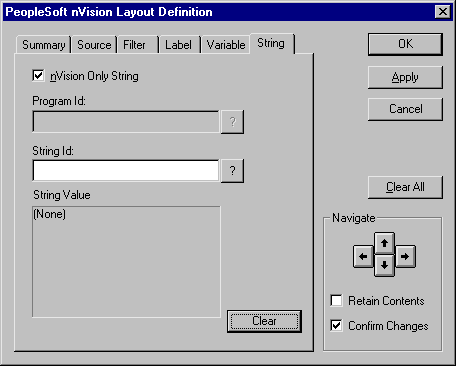
Use the PeopleSoft nVision Layout Definition dialog box: String tab to set up string criteria for the current cell selection:
This example illustrates the fields and controls on the PeopleSoft nVision Layout Definition dialog box: String tab.
To set up string criteria for the current cell selection:
-
Open the PeopleSoft nVision Layout Definition dialog box.
-
Select the String tab.
The String tab in the PeopleSoft nVision Layout Definition dialog box appears.
Use this tab to insert a string from the Strings table into a cell in your layout.
-
Clear the nVision Only String box, if appropriate.
By default, this tab displays only the strings that were created for use with PS/nVision—those with a program ID of NVISION. If you want to select from all available strings, clear the nVision Only String box.
-
If the nVision Only String box is cleared, select a Program ID.
Note:
If the nVision Only String check box is selected, the program ID is NVISION.
-
In the String ID field, select the ID of the string you want to insert.
Select any of the strings assigned to the program ID that you specified.
-
Click Apply to save your changes and define string criteria for a different cell, or click OK to save your changes and close the dialog box.
If you clicked Apply, and you want to reuse all or part of the criteria you just applied, select the Retain Contents box. This preserves all the dialog box information when you navigate to a new cell selection. Then repeat steps 3 through 5 to define additional string criteria.