Strings
The following table lists where to translate strings:
| Object | Base Table | Related Language Table | Where to translate |
|---|---|---|---|
|
Strings |
STRINGS_TBL |
STRINGS_LNG_TBL |
Translate Strings page. |
This example illustrates the fields and controls on the Translate Strings page. You can find definitions for the fields and controls later on this page.
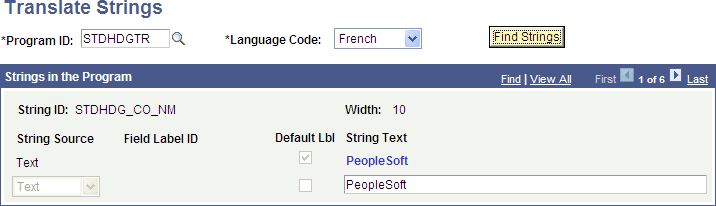
Translating String Definitions into a Non-Base Language
To translate string definitions into a non-base language:
-
Select . The Translate Strings page appears.
-
In the Program ID field, enter or search for a program ID.
-
From the Target Language drop-down list, select the target language.
-
Click the Find Strings button.
The page refreshes and displays the first of all strings for the program ID.
Click the View All link or use the Show Next and Show Previous arrows to navigate through the results.
-
In the String Text field, enter the a translation for the string that displays directly above the field.
There are three situations in which you can translate strings IDs.
-
The string ID matches a field name in the database whose labels have been translated. In this case, you can use the Translate Strings page to choose among any of the labels of that field or static text for the string label. If none of the labels is appropriate for this context (or they are too long) then you can select Text as the label type and enter the translation. It is preferable that, whenever possible, you use field labels.
-
The String ID matches a field name in the database whose labels have not been translated. In this case, the message “Untranslatable Field” displays in red. This message means that there is a field in the database with the same name as the string ID, but it has not been translated, so you cannot use the translated labels for the string. In this situation, you must translate the field first and then return to the Translate Strings page and select the label that is more appropriate for the string.
-
The string ID does not match a field name in the database. In this case, you may not select a label type. Text is the only option.
-
-
Click the Save button.