Using Translation Designer Display Options
This section discusses how to:
-
Use the information bar.
-
Expand and collapse nodes.
-
Choose which rows to view.
-
Resize columns and rows.
Using the Information Bar
Across the top of the translation grid, an information bar displays helpful information about the project. The target language, current project, and current viewing option (all, translated, untranslated, or modified) are set in italic.
On the left side of the bar, you can see the hierarchical organization that is used to display definitions in the grid: pages (at the highest level), fields (at the next level), and translatable definitions—field labels, page text, and translate values—at the lowest level.
Each definition is color-coded to remind you with which definition type you’re working.
-
Fields: blue.
-
Field labels: light purple.
-
Page text (not derived from a field label): dark purple.
-
Translate values: green.
Further, the following graphical cues help you understand the display:
-
All fields on the page are displayed, even if they are hidden fields.
-
The default label ID appears in italics, but not boldface.
-
Any label ID that is used but that is not the default label appears in boldface italics.
-
Page text from hyperlinks is displayed.
-
If the same field has multiple label IDs on the same page, it appears only once for that page.
This example illustrates the fields and controls on the Color-coded definitions.
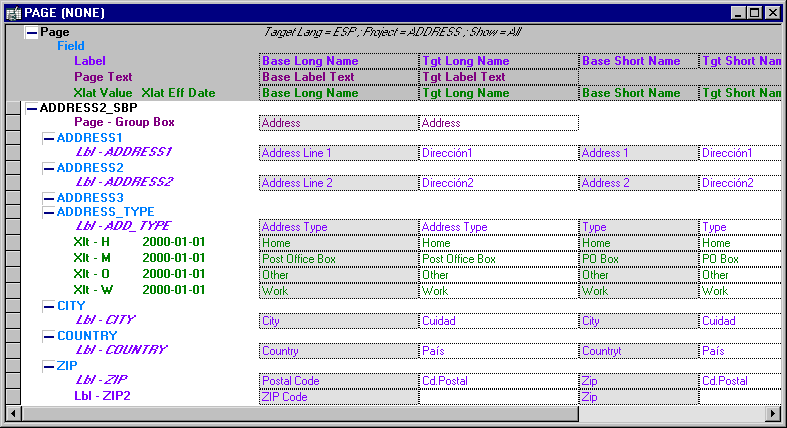
In this example, notice that there is a group box with page text that is not derived from a field label. The ADDRESS_TYPE field has a set of associated translate values. All other translatable definitions are field labels.
Notice also that the default label ID is italicized but not bold, while any non-default label IDs used are in bold italics. This is apparent when you look at the ZIP field, which has two labels. The other field labels appearing in the grid are associated with the field, but not used on the page being translated; they are displayed primarily so the translator can see the context in which they are translating the label and ensure consistency of terminology across labels.
Expanding and Collapsing Nodes
The left side of the translation grid is a hierarchical tree control that displays all the definitions on the page.
| Field or Control | Description |
|---|---|
|
|
Click once to expand the definition by one level. |
|
|
Click once to collapse the definition by one level. |


To expand the entire tree structure, from the View menu select Expand All. To collapse the entire tree structure, from the View menu select Collapse All. Right-clicking anywhere in the grid displays a popup menu that contains these options. Another option on the popup menu, Expand Current Definition, expands the selected definition by one level.
Choosing Which Rows to View
Right-click anywhere in the translation grid to see a popup menu that lets you choose which rows are displayed in the grid:
| Field or Control | Description |
|---|---|
|
All |
Shows all translatable definitions. |
|
Translated |
Shows only the definitions that have already been translated—that is, where the base language label and target language label do not match. |
|
Untranslated |
Shows only the definitions that have not been translated—that is, where the target language label is blank or the base language label and target language label match. |
|
Modified |
Shows the definitions that have been modified in the translation grid. Translation Designer defaults to this mode when it encounters a save conflict. |
Keep in mind that the options you select in the popup menu work together. If you select Expand Current Object while Untranslated is activated, you might not see anything. This means that everything in the current definition is translated.
Resizing Columns and Rows
To change the column width, place the cursor over the column divider on the information bar. When the cursor changes, drag the column divider to the desired position. You can resize only translatable columns; you cannot resize the columns that display the hierarchical tree of page definitions. Use the same technique to change row height.