Implementing Primary-Secondary Load Balancing
This section provides and overview of primary-secondary load balancing and discusses how to set up primary-secondary load balancing on the PeopleSoft system.
Understanding Primary-Secondary Load Balancing
You can implement primary-secondary load balancing on the integration system to compensate for processing capabilities of various machines on which primary domains and secondary domains run.
As an example, you might have a domain on machine that is also running the PeopleSoft Pure Internet Architecture. In this case, you could configure primary-secondary load balancing such that the machine that is running the PeopleSoft Pure Internet Architecture processes fewer requests than other machines on which domains reside.
Another example is a situation where the machines on which you are running domains have different processing capabilities due to the hardware installed in them. In this situation you can configure the machines with the most process power to process the greater number of requests.
To configure primary-secondary load balancing, you assign a weight between 1 and 10 to each domain to distribute request processing. A domain assigned a weighted value of 1 processes the fewest requests; a domain assigned a weighted value of 10 processes the greatest number of requests.
Setting Up Primary-Secondary Load Balancing
You set up primary-secondary load balancing using the Primary/Secondary Load Balancing page (IB_DOMAIN_SEC).
To set up primary-secondary load balancing, you assign a processing weight value to each domain. The domain with the lowest number processes the fewest number of requests and is the primary domain. The domains with the higher numbers are the secondary domains and process the greatest number of requests.
This example illustrates the Primary/Secondary Load Balance page. The example shows primary-secondary load balancing set up for the system.
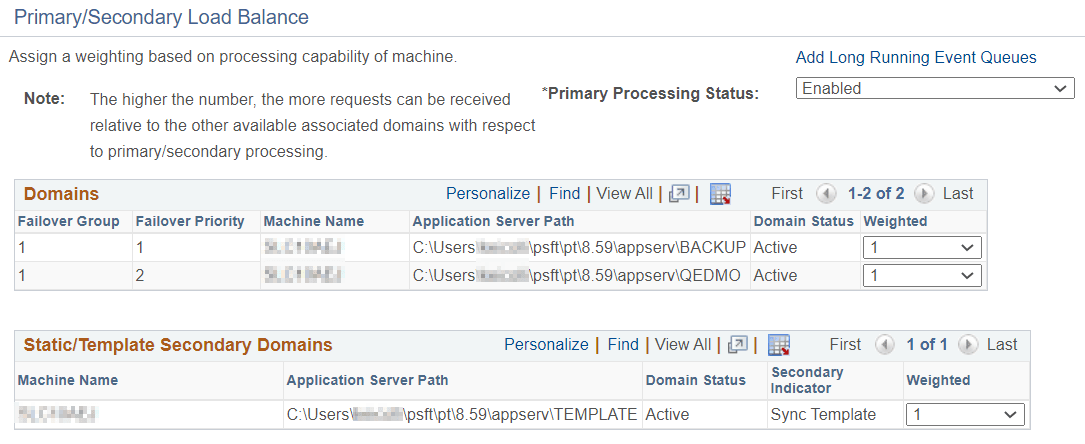
The Domain section on the page lists information for the primary domain, while the Static/Template Secondary Domains section lists information about static secondary domains.
The example shows two domains configured on one machine. The domains listed in the Domains section, BACKUP and QEDMO, are the primary domains and have a load balance weight of 1 assigned to it. Given the load balance weight assigned to the domains, they processes the fewest number of requests.
The domain listed in the Static/Template Secondary Domains section, TEMPLATE, has a load balance weight of 1 assigned to it. It processes the same number of requests as the master domain.
To set up primary-secondary load balancing:
-
Access the Primary/Secondary Load Balance page ( and click the Primary/Secondary Load Balance link.).
-
For each domain select a value from the Weighted drop-down list box to assign a load balancing weight for the domain.
-
Click the OK button.
Setting Up Primary-Secondary Load Balancing for Long-Running Events
Typical primary-secondary load balancing usually focuses on normal events running at a high throughput. However, there are some instances where there are low volume service operation that contain long-running events. For better performance, you can assign these types of service operation to long-running event queues, where the processing is spread across all potential master and Secondary handlers.
You use the IB Long Running Event Queues page (IB_DOMAIN4_SEC) to assign service operations to long-running event queues.
This example illustrates the IB Long Running Event Queues page.
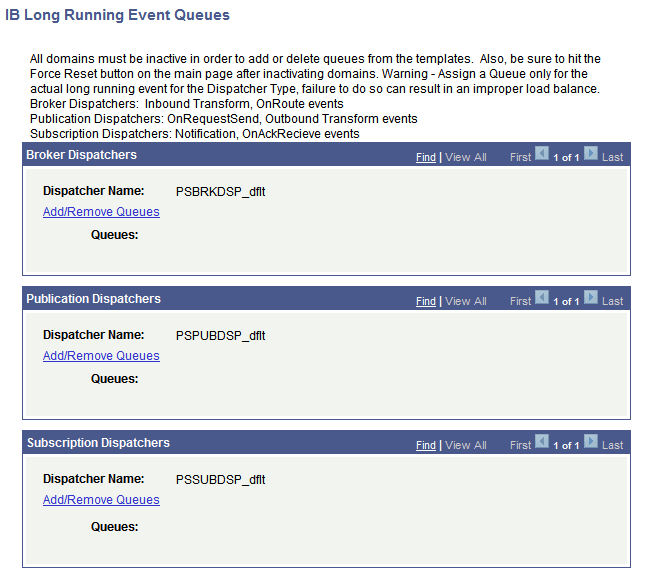
To assign a service operation to a long-running event queue, you add the service operation queue that is currently defined on the service operation definition to one of the dispatcher queues on the page. When you click the Add/Remove Queues link for one of the dispatchers, the Add/Remove Queues page (PSIBQUEUE_SEC) appears.
This example illustrates the Add/Remove Queue page.
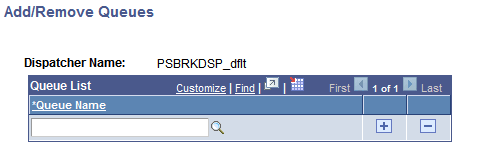
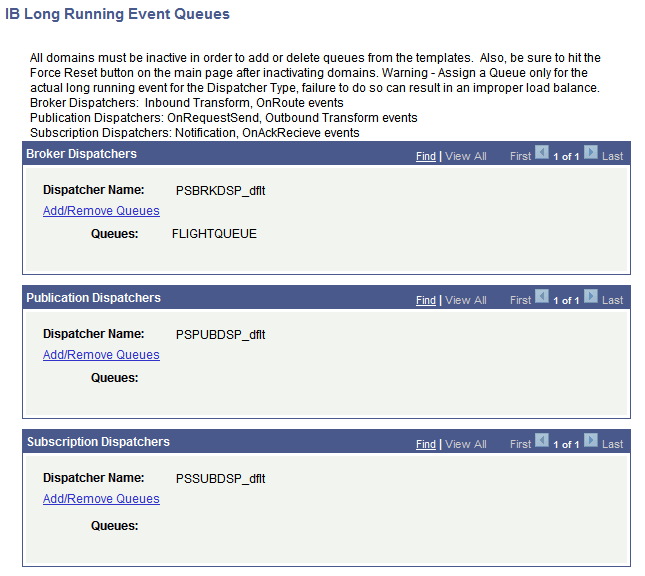
You use the Lookup button on the page to search for the service operation queue to which the service operation is assigned. When you click the OK button, the IB Long Running Event Queues page appears and the queue you specified appears in the dispatcher Queue field.
This example illustrates the IB Long Running Event Queues page. The example shows the service operation queue FLIGHTQUEUE added to the Broker Dispatcher queue.
The following table describes the proper dispatchers to which to assign service operation queues based on the type of processing required:
| Dispatcher | Processing |
|---|---|
|
Broker Dispatcher |
|
|
Publication Dispatcher |
|
|
Subscription Dispatcher |
|
Important:
Do not assign service operations that contain long-running events to the same queues as those that do not contain long-running events. Processing performance for the normal high-volume service operations can be impacted.
To assign a service operation to a long-running event queue:
-
Access the Domain Status page ().
The Domain Status page appears.
-
Inactivate the domain.
In the Domains grid, locate the Domain Status drop-down list box and select Inactive.
-
Click the Force Reset button.
-
Click the Primary/Secondary Load Balance link.
The Primary/Secondary Load Balance page appears.
-
Click the Add Long Running Event Queues link.
The IB Long Running Event Queues page appears.
-
Click the Add/Delete Queue link for the dispatcher to which to add the service operation queue.
The Add/Remove Queues page appears.
-
Enter a name or use the Lookup button to search for the name of the queue to which the service operation is assigned.
-
Click the Update button.
The Primary/Secondary Load Balance page appears.
-
Click the OK button.
The Domain Status page appears.
-
Activate the domain by selecting Active from the Domain Status drop-down list in the Domains grid.
-
Click the Update button.