Registering and Synchronizing Integration Gateways and Virtual Application Server Domains
This section discusses registering and synchronizing integration gateways and virtual application server domains.
Understanding Registering and Synchronizing Integration Gateways and Virtual Application Server Domains
When you boot a virtual server it automatically registers itself with the gateways defined on the Inbound Gateways (IB_GATEWAY_SEC) page. Subsequently, when you shut down a virtual server it automatically de-registers itself.
There may be situations where the automatic registration process fails, a gateway gets restarted, and so on. You can manually register a virtual server domain or set up automatic synchronization at a specific regular interval.
Using the Inbound Gateways Page
The options for setting up manual or automatic synchronization are on the Inbound Gateways page. To access the Inbound Gateways page, select and click the Inbound Gateways link.
This example illustrates the Inbound Gateways page. Use the Ping button or the Set Up link to register and synchronize virtual application servers with gateways.
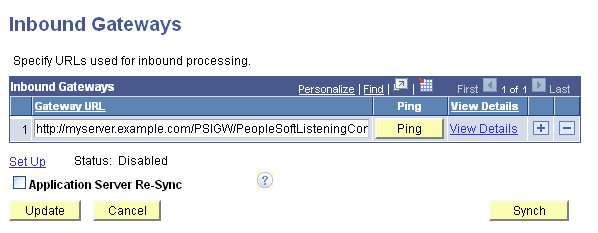
The following fields and controls appear on the page:
| Field or Control | Description |
|---|---|
|
Gateway URL |
Enter the integration gateway URL. |
|
Ping |
Click the button to ping the defined gateway. |
|
View Details |
Click the link to access the Gateway Server URLs page to view virtual server domains configured for the gateway. Using the Gateway Server URLs page is described later in this topic. |
|
Set Up |
Click the button to access the Auto Sync page to set up and enable auto-synchronization of the integration gateway and virtual application servers. Using the Auto Sync page is described later in this topic. |
|
Status |
This read-only field indicates the status of auto-synchronization. The values are:
|
|
Application Server Re-Sync |
This option is applicable only for situations where you are using a default application server configuration in the integration gateway (PeopleSoft Node Configuration page) and there are no virtual servers defined. If you set this option and the default application server goes down, the system synchronizes the gateway and the default application server so that when the application server is brought back up, the gateway again uses the application server without the need to recycle the gateway. Click the Set Up link to access the Auto Sync page to set up auto-synchronization of the default application server and the integration gateway. |
|
Sync |
Click the button to manually synchronize the integration gateway with virtual application servers. |
|
Update |
Click the button after performing a manual synchronization of the integration gateway and virtual application servers to complete the action. |
|
Cancel |
Click the button to exit the Inbound Gateways page without saving any changes. |
Manually Registering and Synchronizing Virtual Server Domains with Gateways
To manually register and synchronize virtual server domains with gateways:
-
Access the Inbound Gateway page ( and click the Inbound Gateways link).
-
Click the Sync button.
-
Click the Update button.
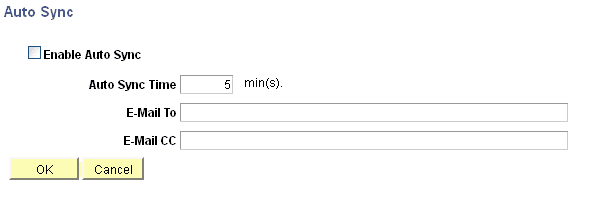
To set up the system to automatically register and synchronize virtual application servers with gateways use the Auto Sync page (IB_AUTOSYNC_SEC). To access the page, click the Set Up link on the Inbound Gateways page.
Note:
When auto-synchronization is enabled, you may still use the Sync button to perform manual synchronization if needed.
This example illustrates the Auto Sync page.
Setting Up Auto-Registration and Auto-Synchronization of Virtual Application Servers with Gateways
To set up auto-registration and auto-synchronization of virtual application servers with gateways, at a minimum you must enable the Auto Sync feature and set the interval at which to perform the synchronization. You can also specify the email addresses of people to receive system-generated notifications in the event auto-synchronization fails or if there is a change to any of the set up parameters.
To enable auto-synchronization of virtual application server domains with gateways:
-
Access the Inbound Gateway page ( and click the Inbound Gateways link.)
-
Click the Set Up link.
The Auto Sync page appears.
-
Check the Enable Auto Sync box.
-
In the Auto Sync Time field, enter the interval in minutes at which the system is to perform the synchronization.
The default value is 5 minutes.
-
(Optional) In the E-Mail To: field enter the email addresses of people to receive system-generated email notification if auto-synchronization fails or if there is a change to any of the set up parameters. Separate multiple email address entries with a semi-colon.
-
(Optional) In the E-Mail CC: field enter the email addresses of persons to copy on system-generated email notifications of auto-synchronization failure or changes to the set up parameters. Separate multiple email address entries with a semi-colon.
-
Click the OK button.
The Inbound Gateways page appears and the auto-sync status displays as Enabled.
Registering and Synchronizing Virtual Application Server Domains with Nodes
When the gateway is booted, upon initialization the system checks the parameter ig.isc.VirtualSynchronization in the integration gateway properties file. If set to True, the system looks at all known nodes that are set to a specific PeopleTools release, for example PeopleTools 8.55, and makes a call to those endpoints to get the virtual server information.
The ig.isc.VirtualSynchronization property appears in the Virtual Server section of the integration gateway properties file.