Viewing Introspection Results and Deploying Actions
The results of the introspection appear on the Introspection Results page (IB_INTNETWORK3_SEC).
This example illustrates the Introspection Results page.
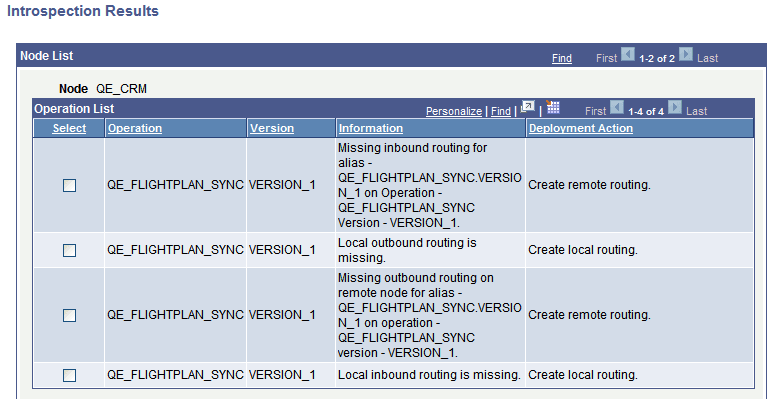
The Introspection Results page displays results for all nodes introspected, however due to space constraints the previous example shows only the results for the QE_CRM node.
The Introspection Results page lists any needed deployment actions that you can correct using the page. To deploy an action, select a row in the grid and click the Deploy button.
For example, in the previous example, the first row in the Operation List grid for the QE_CRM grid shows that an inbound routing does not exist for the routing alias QE_FLIGHTPLAN_SYNC.VERSION_1. To create the routing, check the Select box for the item and click the Deploy button. The system generates a routing.
This example illustrates the Introspection Results page after the system performs the deployment action. The example shows the page after creating an inbound routing for the routing alias QE_FLIGHTPLAN_SYNC.VERSION_1
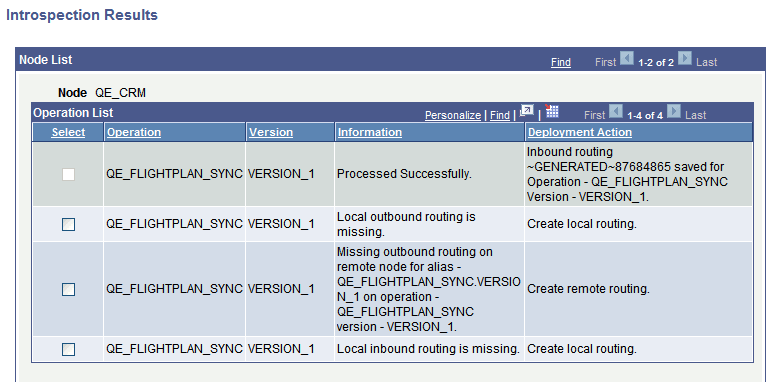
In this example the system has created an inbound routing for the QE_FLIGHTPLAN_SYNC.VERSION_1 service operation.
The status of the action appears in the Information field and the deployment action performed appears in the Deployment Action field.
Click the Return to Target Page link to return to the Target page select additional or different nodes to introspect. Click the Return to Search link to return to the Search for Items – Introspection/Deployment page to work with different integration groups, services, and service operations.