Viewing Network Transaction Information for Specific Transactions
This section discusses how to:
-
Search for transaction data.
-
Access transaction data from query results grids.
-
View data for an asynchronous transaction.
-
View data for a synchronous transaction.
Understanding Viewing Integration Network Transaction Information for Specific Transactions
The Transactional Tracker features pages for viewing the details of specific transactions. Use the Transactional Tracker Details page to view information for an asynchronous transaction; use the Synchronous Details page to view information for a synchronous transaction.
Before using the Transactional Tracker Details page review the Prerequisites for Using the Transactional Tracker.
Searching for Transaction Data
You can search for and access the Transactional Tracker Details page or the Synchronous Details page using the Search Details link that appears on the Tracker Overview page, the Tracker Main View page, and the Synchronous Main View page.
Access the pages as follows:
-
Tracker Overview page: PeopleTools, Integration Broker, Integration Network WorkCenter, Transactional Tracker. The Tracker Overview page appears.
-
Tracker Main View page: Click the Tracker Main View tab.
-
Synchronous Main View page: Click the Synchronous Main View tab.
On each these pages the Search Details link appears under the Network Node List.
This example illustrates the Search Details link under the Network Node list
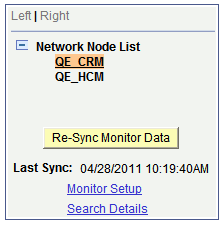
When you click the Search Details link the Search for Transaction Details page (IB_VERIFYNET_SEC) appears where you enter the transaction ID of the transaction you want to view.
Important:
The transaction ID that you enter should always be the instance transaction ID.
This example illustrates the Search for Transaction Details page.
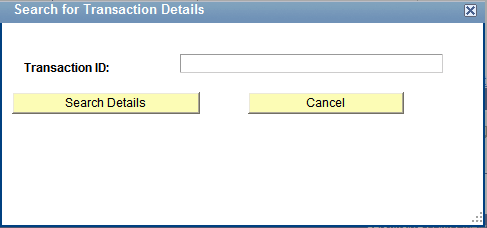
When you click the Search Details button to search for the transaction the Multiple Target Nodes page (IB_NODELIST_SEC) appears if the transaction exists on more than one network node:
This example illustrates the Multiple Target Nodes page. In this example, a transaction exists on the nodes listed in the Node List grid, the QE_CRM and QE_HCM nodes.
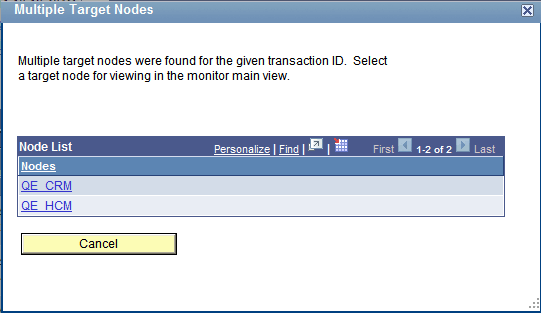
If the transaction exists on more than one network node, click the name of the node for which you want to view the transaction.
If you selected an asynchronous transaction, the Transactional Tracker Detail page appears in a separate browser window for the transaction on the selected node. If you selected a synchronous transaction, the Synchronous Details page appears in a separate browser window for the transaction on the selected node.
Note:
If the Transactional Tracker Detail page or the Synchronous Details page do not appear in a full-size browser window, click the browser Restore button in the upper right-corner of the browser to restore the browser window to full size.
Accessing Transaction Data from Query Results Grids
When you conduct a query on the Tracker Main View page or the Synchronous Main View page the results appear in the Results grid at the bottom of the page. At the end of each row of results is a Details link that provides access to the transaction details for the specific transaction.
Access the pages as follows:
-
Tracker Main View page: Click the Tracker Main View tab.
-
Synchronous Main View page: Click the Synchronous Main View tab.
After you select a remote node and synchronize the data the query results appear in the Results grid at the bottom of the page.
This example illustrates a partial view of the Results grid for an asynchronous query on the Tracker Main View page.
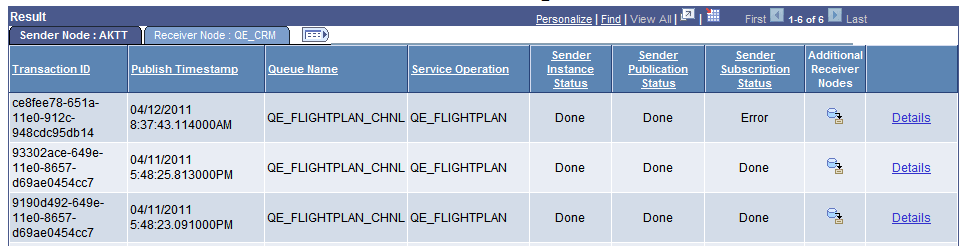
This example illustrates a partial view of the Results grid for a synchronous query on the Tracker Main View page.
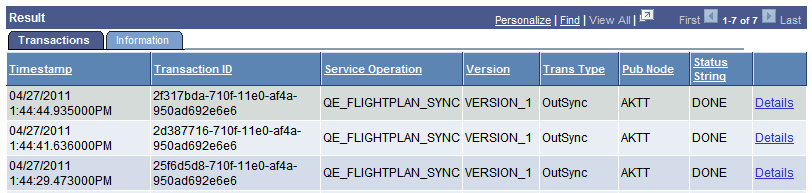
Click the Details link for a transaction to launch the Transactional Tracker Details page for an asynchronous transaction or to launch the Synchronous Details page for a synchronous transaction. Note that either page appears in a separate browser window.
Note:
If the Transactional Tracker Detail page or the Synchronous Details page does not appear in a full-size browser window, click the browser Restore button in the upper right-corner of the browser to restore the browser window to full size.
Viewing Data for an Asynchronous Transaction
The Transactional Tracker Details page features transaction information for the sending and receiving node.
To access the page click the Details link for a transaction in the Results grid on the Tracker Main View page.
This example illustrates the Transactional Tracker Details page.
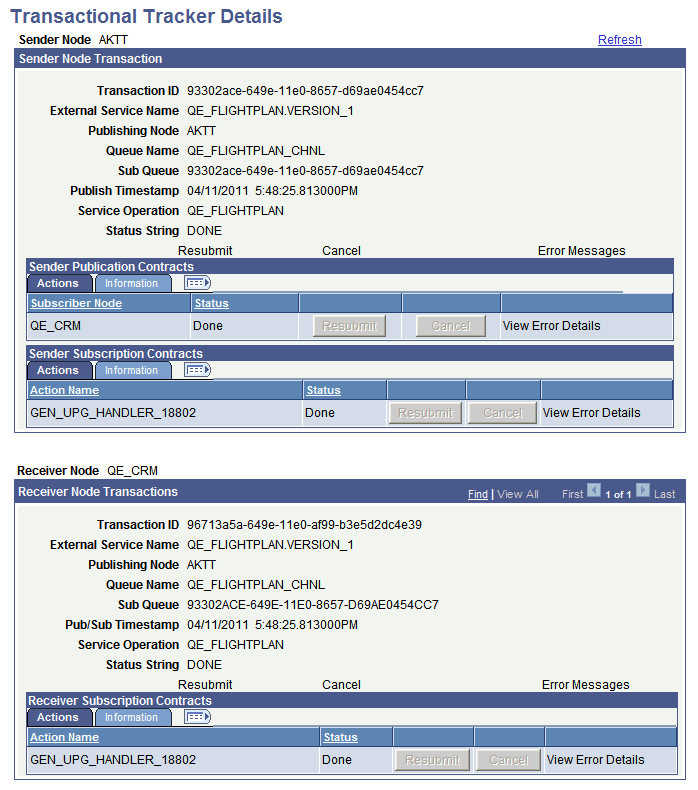
If errors exist in the transaction the Error Messages and View Error Details links are active and you can click them for additional details. The Resubmit and Cancel buttons on the page are enabled if the status of the transaction is such that these actions are warranted.
You can search for a specific transaction to view or you can launch the Transactional Tracker Details page from the results grid on the Tracker Main page or the Tracker Main View page.
Viewing Data for a Synchronous Transaction
The Synchronous Details page in the Transactional Tracker has the same format and content of the Synchronous Details page in the Integration Broker Service Operations Monitor, except that you cannot view transactional XML using the page in the Transactional Tracker.
This example illustrates the Synchronous Details page.
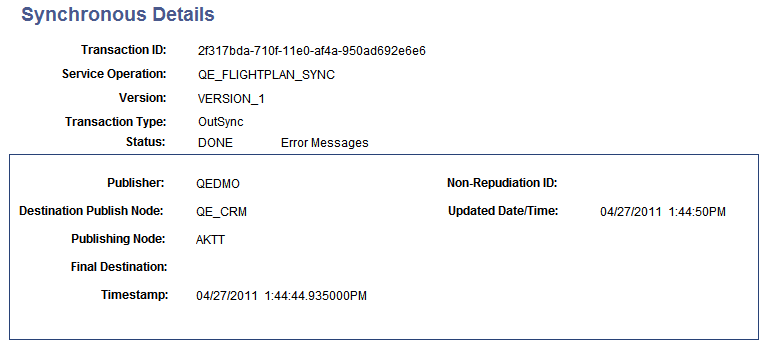
If errors exist in the transaction the Error Messages link is active and you can click the link for additional details. The Resubmit and Cancel buttons on the page are enabled if the status of the transaction is such that these actions are warranted.
The fields that appear on the page are described elsewhere in this section.