Setting HTTP Proxy and Keystore Options
You can set up HTTP proxy and keystore options for use with Send Master. You set these options on the HTTP tab of the Preferences dialog box. To access the dialog box, select .
This example illustrates the fields and controls on the Preferences – HTTP tab.
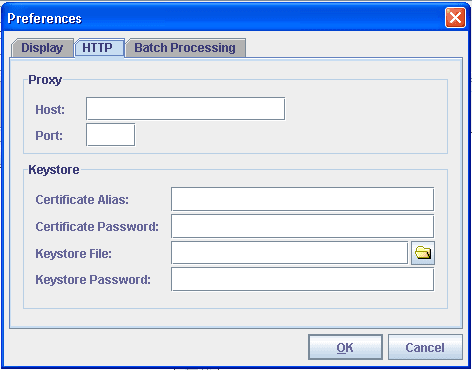
Specifying HTTP Proxy Settings
To specify HTTP proxy settings for Send Master:
-
Access the Preferences dialog box and click the HTTP tab.
-
In the Proxy section of the dialog box, specify the following information:
-
In the Host field enter the name of the proxy host.
-
In the Port field, enter the appropriate port number.
-
-
Click the OK button.
Specifying Keystore Settings
To specify keystore settings for Send Master:
-
Access the Preferences dialog box and click the HTTP tab.
-
In the Keystore section of the dialog box, specify the following information:
-
In the Certificate Alias field, enter the certificate alias.
-
In the Certificate Password field, enter the encrypted certificate password.
-
In the Keystore File field, click the folder icon to specify a keystore file.
-
In the Keystore Password field, enter the encrypted password for the keystore.
-
-
Click the OK button.