Adding Message Parts to Container Messages
This section discusses how to add message parts to container messages.
Use the Messages – Message Definitions page to add message parts to a container message. To access the page, select .
This example illustrates the Messages – Message Definitions page for the container message CONTAINER_MSG.
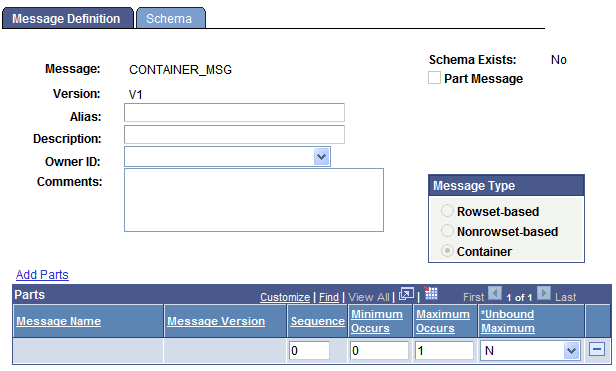
When you click the Add Parts link to specify a message, version, and message type to add, the Add Parts page (IB_MESSAGE_PARTS) appears.
This example illustrates the Add Parts page.
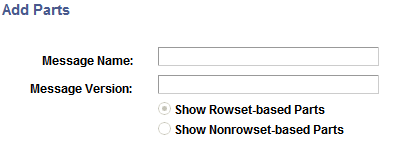
For a message definition to be available for you to add to a container message, you must have selected the Message Parts check box when you created the message definition. In addition, container messages can contain only all rowset-based messages or all nonrowset-based messages.
After you add message parts to a container message, the Messages – Message Definitions page displays and the message parts that you have added to the message are listed in the Parts grid.
This example illustrates the Messages – Message Definitions page. The example shows three message parts added to the container message.
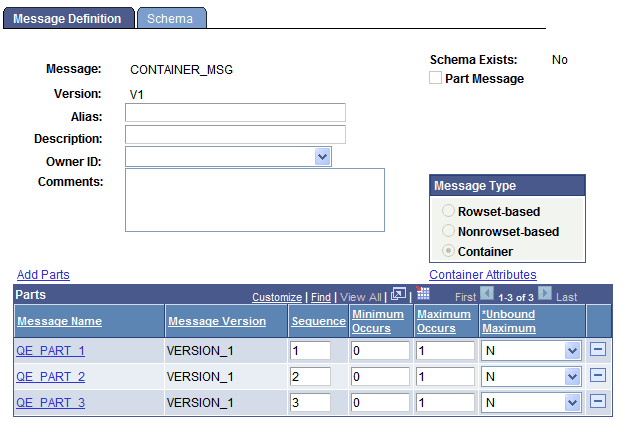
Click the name of any of the message parts that appear in the grid to open the individual message definition. If the service system status is set to Production, when assigned to a container message, you cannot modify a message definition. To modify the definition, you must delete it from the container message first.
This example illustrations the Messages – Message Definitions page. The example shows how the PART_1 message part displays if you click the message name in the Parts grid shown in the previous example.
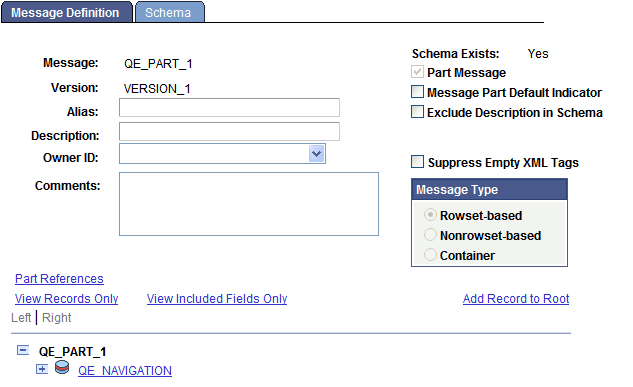
Clicking the Part References link displays all messages to which the message part is assigned.
Note:
Before you add nonrowset-based message parts to a container message, you must upload XML message schemas to each message part that you intend to include in the container message. Nonrowset-based part messages cannot be saved without a schema.
To add a message part to a container message:
-
Select
-
Select a container message to which to add message parts.
The Messages - Message Definitions page appears.
-
Click the Add Parts link.
The Add Parts page appears.
-
Select a message to add.
You can use one of two methods to select a message to add:
-
In the Message Name and Message Version fields, enter the message name and version to add.
-
Select the Show Rowset-Based Parts option or the Show Nonrowset-Based Part option and click the Search button to display all rowset-based or nonrowset-based messages that are designated as part messages in the system.
Select one or more messages to include in the container message.
-
-
Click the OK button.
The Messages - Message Definitions page appears, with the Parts grid populated with the message or messages that you selected.
-
(Optional.) In the Parts grid, enter numeric values in the Sequence column to order message part placement in the container message.
If you do not enter any values, the system sequences the messages in the order in which you add them to the container message.
-
(Optional.) In the Minimum Occurs field, enter the number of minimum rows in the message part to include in the container message.
-
In the Maximum Occurs field, enter the maximum number of level 0 rows from the part message to include in the container message.
-
In the Unbound Maximum drop-down list, select whether to include all level 0 rows from the part in the container message.
Note:
If you select Y, note that the Maximum Occurs field no longer displays on the page, as all rows are included in the container message.
The Minimum Occurs, Maximum Occurs and Unbound Maximum fields are described elsewhere in this section.
See Understanding Including Level 0 Rows for Message Parts in Container Messages.