Building the URI Template Example
This section provides examples for building the URI Template.
To build a URI template using the Template Builder:
-
Select the Document Template.
Note:
The document template must contain the values for the variables you plan to build out in the URI template.
-
For OpenAPI REST Service Operation add the root resource.
-
Select the Root Resource from the drop down list.
-
Click the Build link for the resource.
-
The root is displayed in the URI Template field.
-
In the Separator section click Append to URI or enter a / (slash).
-
In the Expression Workspace section, select the control to use Primitive or Collection.
-
Select the Primitive or Collection value from the drop down list.
-
Click Add.
The element is added in brackets in the Expression Workspace.
-
Click Append to URI.
-
If you are adding another parameter, click the Add Separator then repeat steps 4 to 7.
-
After adding all the parameters, click OK.
Example Primitives
To add primitives:
-
In the Expression Workspace, from the Expression Type drop-down list, select Simple String.
-
Click Primitive. and from the Primitive drop-down list, select state and click the Add button
The
{state}expression appears in the expression field. -
Select the primitive from the drop-down list.
-
Click Add button.
The primitive is shown in brackets in the Expression Workspace.
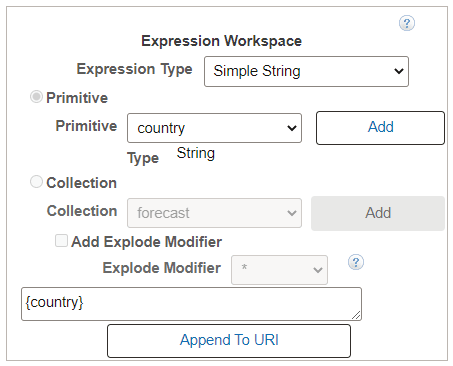
This example illustrates the Expression Workspace for adding a primitive.
-
Click Append to URI to add the primitive to the URI Template.
Example Collection
To add a collection:
-
In the Expression Workspace, select Collection.
-
Use the Collection drop down list to select the collection from the Document Template.
-
Click Add.
-
Select Add Explode Modifier if applicable.
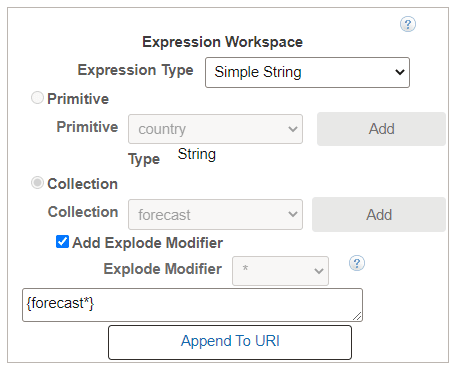
This example illustrates the Expression Workspace when adding a collection to the URI.
-
Click Append to URI.
Example Constant
To add a constant to the URI:
-
In the Constant section, enter the constant value.
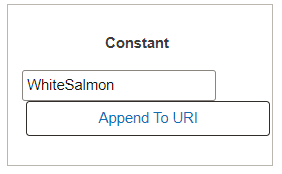
This example illustrates the Constant section.
-
Click Append to URI button.
The string is added to the URI Template field and the template is complete.