Creating the Provider Application Service
To create a new Provider Application Service:
-
Select .
-
Click Create Application Service.
This example illustrates the fields and controls on the Application Services – General Information page. You can find definitions for the fields and controls later on this page.
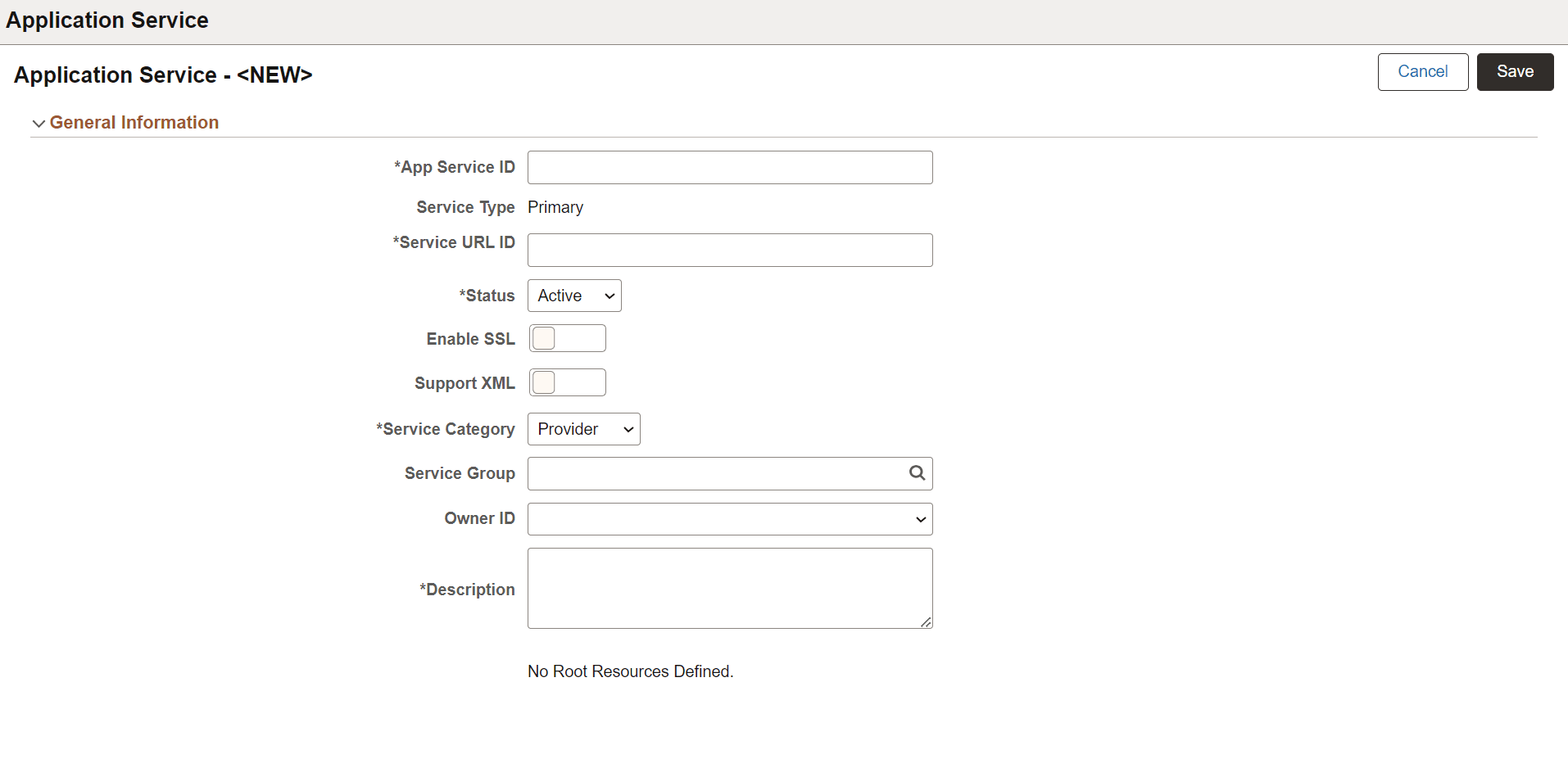
| Field or Control | Description |
|---|---|
|
App Service ID |
Service ID for the Application Service. |
|
Service Type |
When you create a new Application Service, the default Service Type is Primary. When you create an Alias from an existing Application Service, the default Service Type is Alias. |
|
Service URL ID |
Service URL ID forms a part of the endpoint URL. It identifies the service to be executed. |
|
Status |
By default the status is Active. |
|
Enable SSL |
Requires SSL for the Service to be invoked. |
|
Support XML |
Selects XML as an optional data source. |
|
Service Category |
By default the Service Category is Provider. |
|
Service Group |
Used to group services together for search. Also used as part of the Discovery Service for module name for grouping of services. |
|
Export Service |
Indicates if the service has been exported. Note: This field is displayed after you save the Application Service. |
|
Owner ID |
Owner of the Application Service. |
|
Description |
A description for the Application Service. |
The Save action will perform the following:
-
Verify that the Service URL ID value meets the Oracle standard for an URL value. If valid, the value will then be checked against Integration Broker Service Alias's to insure it is unique. If the value does not meet this criteria, a pop up message will be displayed.
This example illustrates the Service URL ID validation message.

Correct the Service URL ID and save the application service.
-
When the Service URL ID is valid, save processing will generate the necessary IB metadata, update the Service Name and enable the Create Root Resource and Import Root Resource buttons.
This example illustrates the fields and controls on the Application Service page after Save. You can find definitions for the fields and controls later on this page.
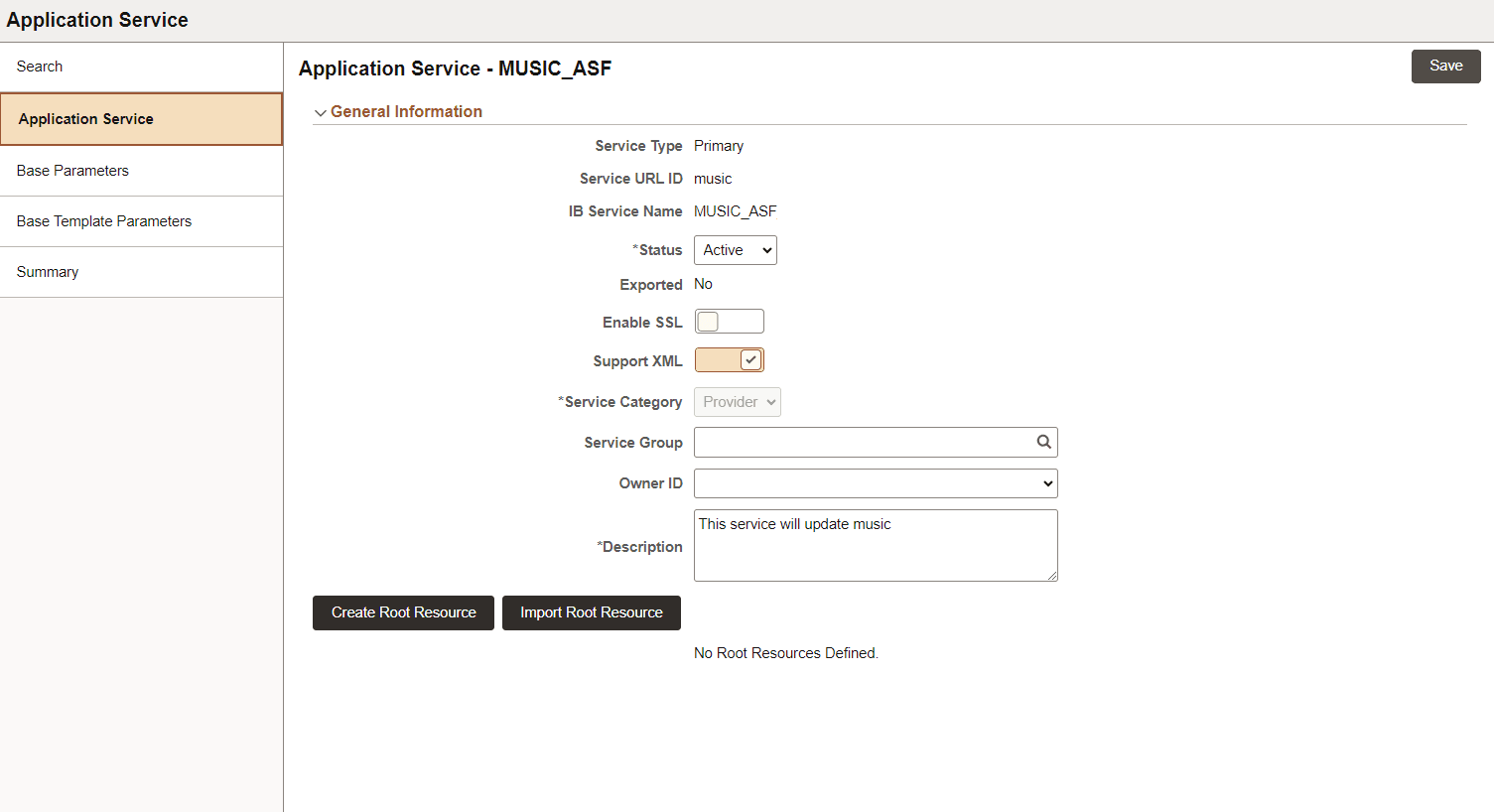
The developer can select whether to create a new root resource or import an existing root resource.
| Field or Control | Description |
|---|---|
|
Create Root Resource |
Select this button to create a new root resource. |
|
Import Root Resource |
Select this button to import a root resource from another Application Service or the same Application Service. |