Defining General Routing Information
After you add a routing definition to the system use the pages of the Routing component to define the routing details. Use the Routings – Routing Definitions page to define general routing information.
To access the Routing Definitions page, select .
This example illustrates the fields and controls on the Routings – Routing Definitions page when you are working with a synchronous service operation. You can find definitions for the fields and controls later on this page.
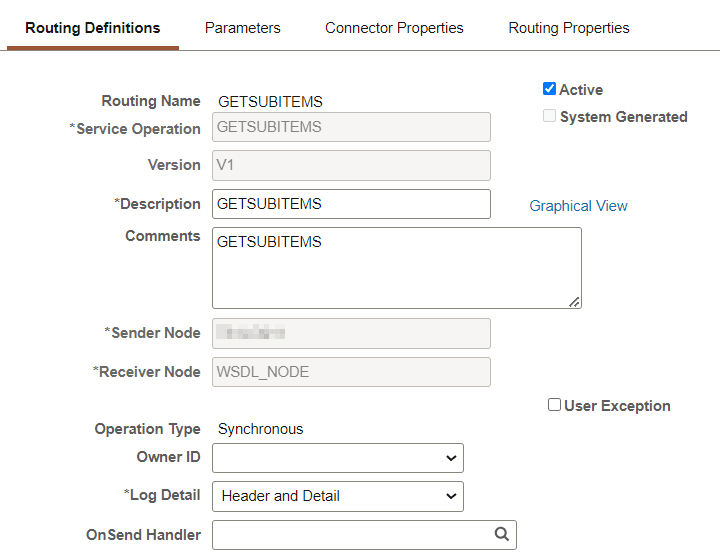
The fields that appear on the Routing–Routing Definitions page vary based on if you are defining a routing for a synchronous service operation or an asynchronous service operations.
The various ways to access this page are discussed in the previous section.
See Understanding Adding Routing Definitions.
When you add a routing definition from a service operation record, the PeopleSoft system automatically populates some of the data on this page based on the data in the service operations record from which you created the routing. Automatically populated data includes the service operation name, version, and routing type.
| Field or Control | Description |
|---|---|
|
Routing Name |
Indicates the name of the routing definition. This name is specified when you add a routing definition to the system. |
|
Service Operation |
Enter the name of the service operation that will use the routing. If you access the Routings component from the Service Operations – Routings tab, PeopleSoft Integration Broker automatically populates this information. |
|
Active |
(Optional.) Select the check box to activate the routing. By default, new routing definition are active. If any of the referenced nodes are inactive, you cannot activate the routing. |
|
System Generated |
When selected, indicates that the PeopleSoft system generated the routing definition. |
|
Version |
Indicates the version of the service operation selected. |
|
Description |
Description of the routing definition. If you do not enter a description, this value defaults to the name of the service operation associated with the routing definition upon save. |
|
Graphical View |
Click this link to view saved routing definitions in graphical format. |
|
Comments |
(Optional.) Enter comments about the routing definition. |
|
Sender Node |
Enter the name of the sending node. |
|
Receiving Node |
Enter the name of the receiving node. |
|
Unordered Segments |
(Optional.) Select the check box to indicate that system should process the service operation messages in parallel. The Unordered Segments check box appears only under the following conditions:
This feature is frequently used in conjunction with the OnPreNotify Handler and OnPostNotify Handler fields to perform pre- or post-processing on segmented messages. |
|
Operation Type |
Indicates the service operation type. PeopleSoft Integration Broker automatically populates this information when you select the service operation. |
|
User Exception |
The User Exception check box displays only for synchronous service operations. (Optional.) Select the check box to enable exception handling using PeopleCode. When enabled and an error occurs you can handle any errors in the calling PeopleCode. If not enabled any errors that occur cause the program to stop. |
|
Owner ID |
(Optional.) From the drop-down list box, select the owner of the definition. The owner ID helps to determine the application team that last made a change to the definition. The values in the drop-down list box are translate table values that you can define in the OBJECTOWNERID field record. |
|
OnPreNotify Handler |
(Optional.) From the drop-down list box, select an OnPreNotify handler to perform pre-processing on segmented messages being processed in parallel by the system. This page control appears only when the Unordered Segments check box is selected. |
|
OnPostNotify Handler |
(Optional.) From the drop-down list box, select an OnPostNotify handler to perform post-processing on segmented messages being processed in parallel by the system. This page control appears only when the Unordered Segments check box is selected. |
|
Accept Compression |
(Optional.) The Accept Compression check box displays only for inbound synchronous non-REST service operations. Setting compression for REST service operations is discussed elsewhere in the product documentation. See Setting Compression for REST Service Operations. Select the check box for the system to send the response to the consumer compressed. You must compress the response before sending, using PeopleCode or by setting the Min Message Size Compression parameter in PSAdmin. You can override the compression of the response using PeopleCode by setting the CompressionOverride property on IBInfo. The following example shows sample PeopleCode to override compression of the response message: |
|
Log Detail |
The Log Detail drop-down list box displays only for synchronous service operations. This option enables you to set the level of information logging for synchronous messages that is viewable in the Service Operations Monitor. The valid values are:
|
|
Service Operation Security |
A Service Operation Security link appears when the selected routing definition is for an outbound REST-based service operation Click the link to access the Web Service Access page and to add permissions to the view details for the service operation in the Service Operations Monitor. |
|
OnSend Handler |
This field displays when an OnSend handler is defined for the service operation and the sending node is the local node. It also displays when the system is serving as a hub, and neither the sender nor receiver are local. Select a handler from the list. This handler runs when a message is sent or received to perform processing logic. Note: For Asynchronous transactions, the On Send Retry checkbox is available for selection. When you select this option, the system runs the OnSend Handler when the transaction has a Retry or Timeout status. |
|
Schema Validation Details |
This field displays only when working with any-to-local routing definitions. (Optional.) When this check box is selected and a schema validation error occurs the raw schema parser errors are returned to the consumer within the default message CDATA tag. If the check box is not selected (Default) then if a schema validation error occurs the systems uses the standard message set/ ID framework to generate the error. |
|
OnReceive Handler |
This field displays when an OnReceive handler is defined for the service operation and one of the following conditions exists:
Select a handler from the list. This handler runs when a message is sent or received to perform processing logic. |
|
Use Secure Target Location |
This check box appears only when you are working with an outbound asynchronous request/response service operation. Select the check box to use the secure target location as the endpoint for the response. If the check box is not selected, the (unsecured) target location is used. |