Mapping Records and Fields
To map records and fields, use the Oracle XSL Mapper – Design view to drag record names and field names from the source pane to the target pane in the mapper.
This example illustrates the Oracle XSL Mapper – Design view.
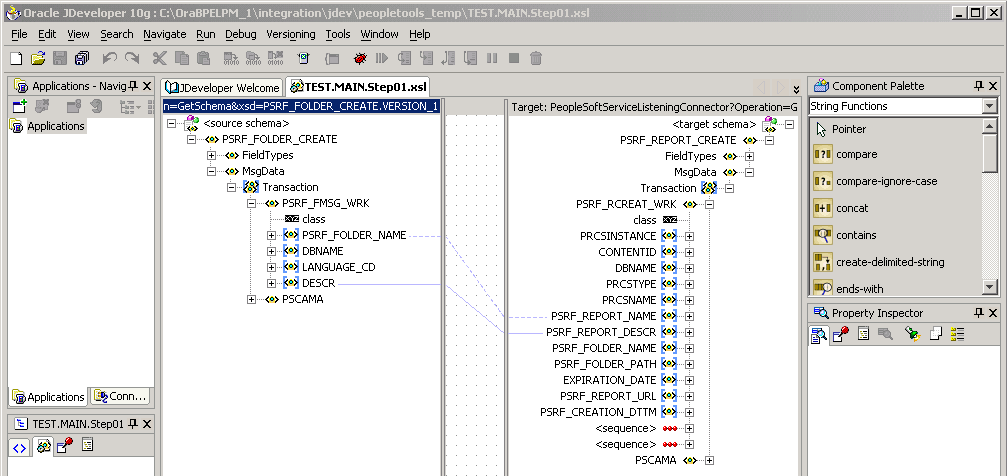
A solid green line appears as you drag the cursor from the source pane to the target pane. When you release the cursor, the line turns blue to show the association.
To map records and fields:
-
Open the Design view of Oracle XSL Mapper.
-
Expand the contents of both the source and target panes.
Click the Expand button (+) to expand each level or section until all records and fields appear.
Note:
When working with rowset-based messages the content to map is located in the MsgData section.
-
In the source pane, click on the icon to the left of a record or field name and drag it to the name of the record or field in the target pane to which you want to map.
Repeat this step for each record or field to map.
-
Click the Save button.