Navigating in Oracle XSL Mapper
This discusses how to:
-
Navigate in the Design View.
-
Navigate in the Source View.
Note:
This section features a brief discussion of some of the key components and areas of the Oracle XSL Mapper development tool. The Oracle JDeveloper documentation provides in-depth details about using the Oracle XSL Mapper.
Navigating in the Design View
To access the Design view of Oracle XSL Mapper, click the Design tab at the bottom of the mapper.
This example illustrates the fields and controls on the Oracle XSL Mapper – Design view. You can find definitions for the fields and controls later on this page.
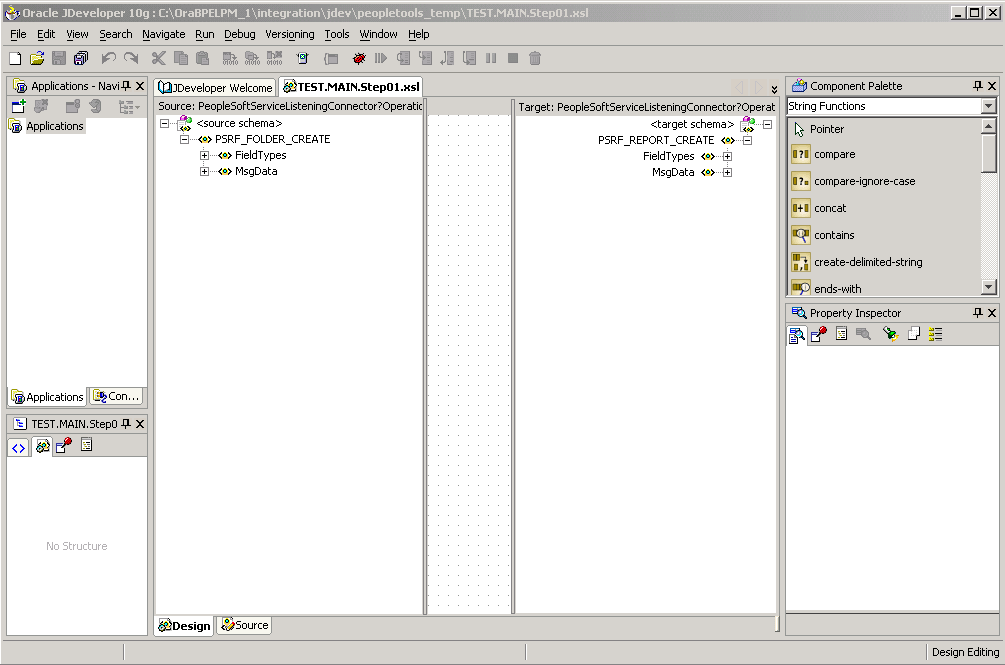
Use the Design view to map records and fields.
A few of the key areas of the Design view are discussed here. For additional information on Design view features, see the Oracle XSL Mapper documentation.
| Field or Control | Description |
|---|---|
|
Title Bar |
The title bar displays the full path to the Oracle JDeveloper installation location and the name of the current transform program. |
|
Developer Welcome (tab) |
Click the tab to display links to online resources, such as documentation, online demos and code samples. |
|
Transform Program name (tab) |
Click to access the transform program. |
|
Source |
The Source pane in the Oracle XSL Mapper main development view provides a hierarchical view of the source or input message and schema. Click the Expand button (+) button and the Collapse button (-) to expand and collapse data shown. Drag the edges of the pane in or out to adjust the viewing area. |
|
Target |
The Target pane in the Oracle XSL Mapper main development view provides a hierarchical view of the target or output message and schema. Click the Expand button (+) button and the Collapse button (-) to expand and collapse data shown. Drag the edges of the pane in or out to adjust the viewing area. |
|
Design (tab) |
Located at the bottom left-side of the window, click the tab to display the area where you map records and fields. |
|
Source (tab) |
Located at the bottom left-side of the window, click the tab to view and edit the raw XSLT code generated by Oracle XSL Mapper. |
Navigating in the Source View
To access the Source view of Oracle XSL Mapper, click the Source tab at the bottom or the mapper.
This example illustrates the Oracle XSL Mapper–Source view.
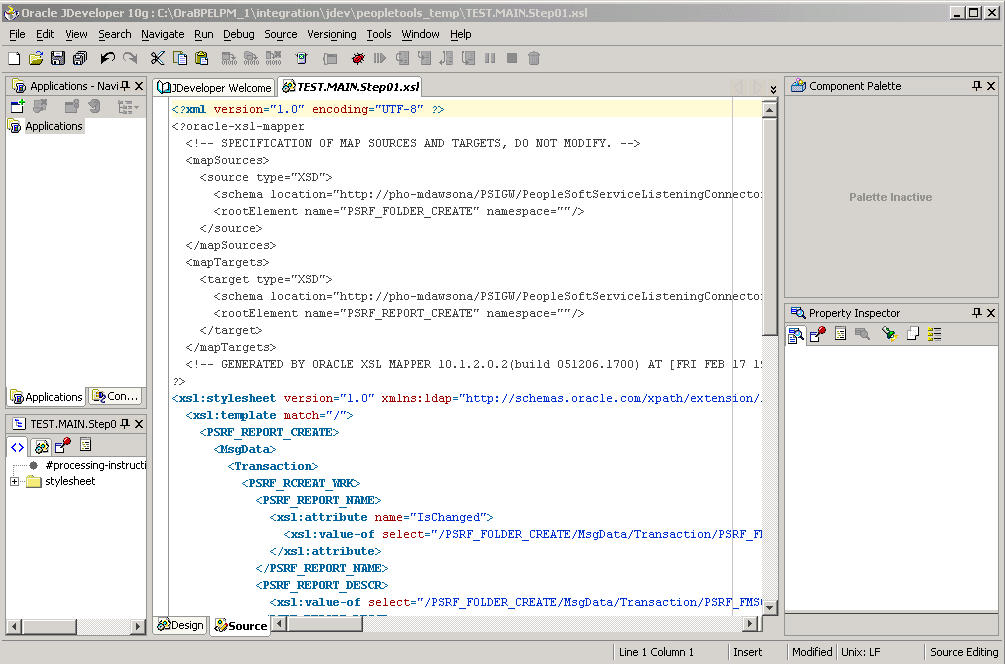
Use the Source view to view and edit the raw XSL code generated by the mapper.
For additional information on Source view features, see the Oracle XSL Mapper documentation.