Step 4: Specify Publishing Options
After you preview the WSDL document, use the Specify Publishing Options page (IB_WSDLEXP_LOC) to specify the publish location of the generated documents.
This example illustartes the Specify Publishing Options page.
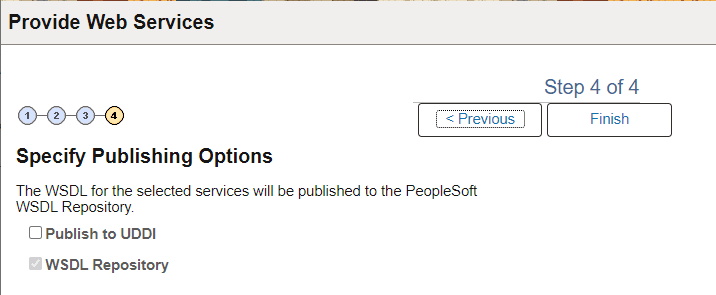
By default the system publishes WSDL documents to the PeopleSoft WSDL repository.
Select the Publish to UDDI check box to publish the WSDL to a UDDI repository in addition to the PeopleSoft WSDL repository.
Providing WSDL Documents to UDDI Repositories
Before providing a WSDL document to a UDDI repository, you must configure the UDDI repository in the PeopleSoft system.
See Integration Broker Administration: Understanding Specifying UDDI Repositories in PeopleSoft Systems.
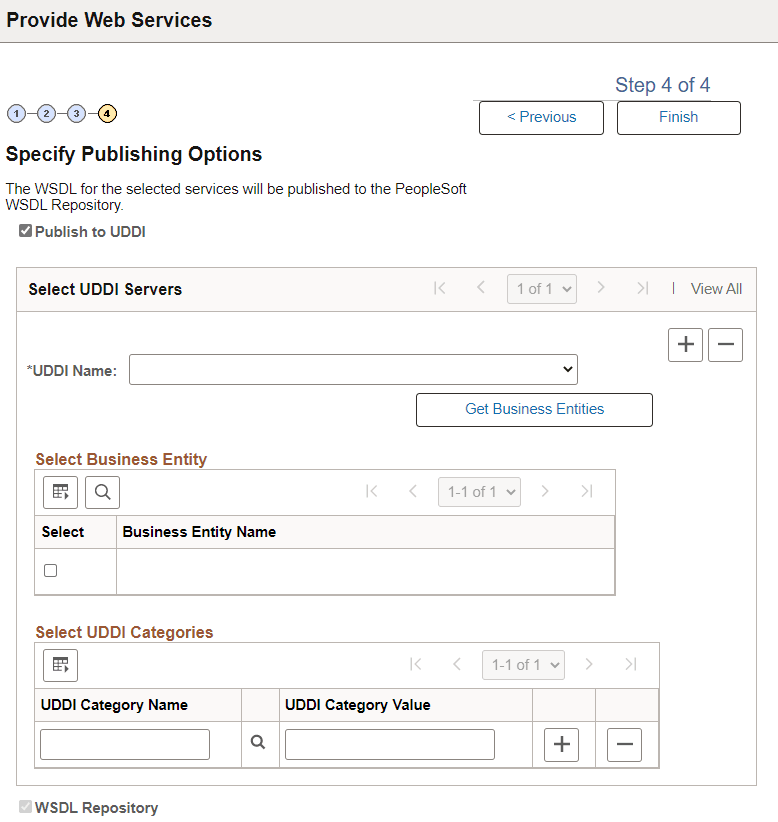
When you select the Publish to UDDI check box, the Select UDDI Servers box appears where you specify the UDDI repository to which to publish the WSDL.
This example show the Specify Publishing Options page when Publish to UDDI is selected.
To provide a WSDL document to a UDDI repository:
-
From the UDDI Name drop-down list box, select the UDDI server to which you are publishing the WSDL.
-
Click the Get Bus. Entities button.
The Select Business Entity section lists the business entities that are available to select for the UDDI server.
-
Select the check box next to each business entity name to include.
-
Click the UDDI Category Name lookup button to display a list of UDDI categories and select a UDDI category. Click the OK button.
-
In the Category Value field, enter a value for the category.
-
To add additional categories, in the Select UDDI Categories section, click the Add a Row button (+) to add a row and repeat step 5 and step 6.
-
Click the Finish button.
The Results page appears and displays the WSDL generation log.