Approving a Copy Request
The approval request is added to the approvers worklist. To approve a request:
-
Sign on as the approver.
-
Select Worklist from the menu bar or select Worklist, My Worklist - Summary View.
-
In the Link column, click the link.
-
The Data Migration Approval page is displayed.
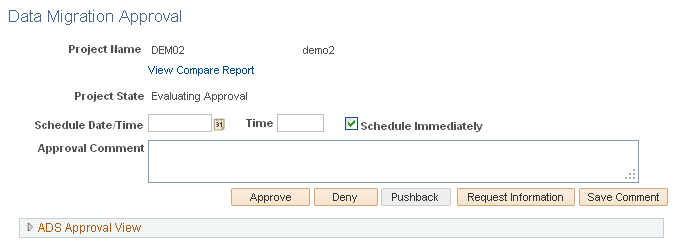
This example illustrates the fields and controls on the Data Migration Approval page. You can find definitions for the fields and controls later on this page.
| Field or Control | Description |
|---|---|
|
Approve |
Click to approve the transaction. |
|
Deny |
Enter a comment in the Approval Comment edit box and click to deny the transaction. |
|
Pushback |
Click to push back the transaction. Pushback is an optional feature that can be implemented in the Approval Monitor. If implemented, push back takes a currently pending step out of pending status and requeues the previous step to its approvers. The meaning of push back is that the approver is questioning the prior step’s approval and is requesting clarification. Push back is only possible within a path, therefore, the first step of a path cannot push back. |
|
Request Information |
Click this button to request additional information from the originator. The approval will be placed on hold. |
|
Save Comment |
Enter a comment in the Approval Comment edit box and select Save Comment. Requesters can add comments to transactions, and approvers can associate their comments with the approval process rather than the request transaction directly. The Approval Framework Monitor provides a mechanism for associating comments with a particular approval process instance, which is tied to a particular application transaction. Approvers can view comments added by another approver, but they cannot change previous comments. |
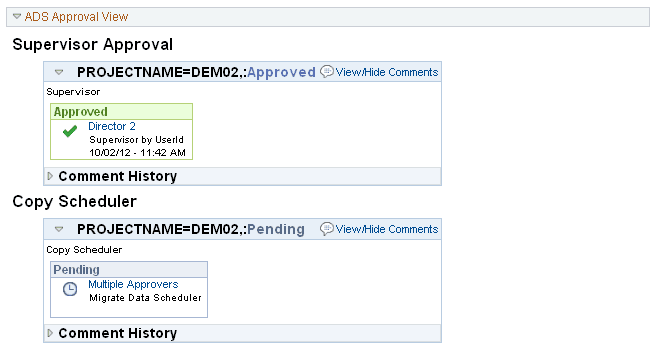
Expand the ADS Approval View to view the current progress of the request.
This example illustrates the fields and controls on the ADS Approval View.