Submitting for Copy using Approval Framework
When the MigrateData approval process is active, all approvals must be completed before the Copy from file will be scheduled in the Process Scheduler.
To request the copy from file:
-
In the Process Definition component (PeopleTools, Lifecycle Tools, Migrate Data, Data Migration Workbench) select the Submit for Copy button.
-
Select the languages to copy.
-
Click Run.
You will receive a message that the project has been submitted for approval and the status will be updated to Evaluating Approval.
-
Click OK to return to the Project Definition page.
-
To view the approvals required, click the Work Approvals link.
This example illustrates the fields and controls on the ADS Approval View. You can find definitions for the fields and controls later on this page.
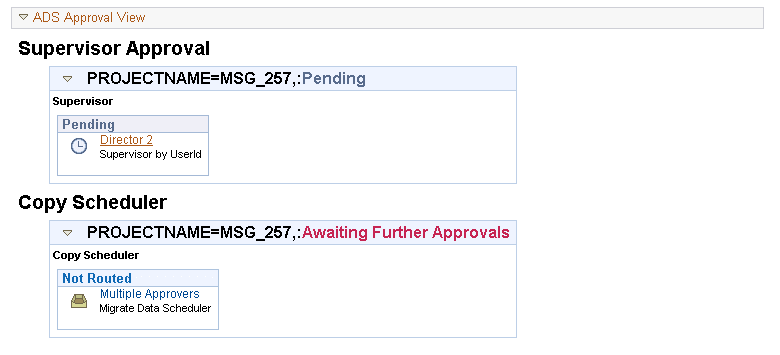
This example shows the two paths. First the Supervisor must approve the project and then the copy scheduler. Note in this example that for Copy Scheduler there are multiple approvers. If you want to see who the approvers are, click on Multiple Approvers for a list of possible approvers. Only one approval is needed, so once one of the copy scheduler approvers approves the copy, the transaction will be deleted from the other copy scheduler approvers worklist.