Comparing From File
To compare an ADS project:
-
On the target database, select .
-
Load the ADS project.
-
Click the Compare button.
-
Select the data sets to compare.
-
Optionally, set the compare options.
See Compare Options
-
Click the Run button.
-
Set your Process Scheduler options and click OK.
The process will be scheduled to run in the Process Scheduler.
-
Click OK again to return to the Project Definition page.
-
Click the Refresh icon on the Project Definition page to see the new status for the project.
Use the Compare button on the Project Definition page to compare a project from a file.
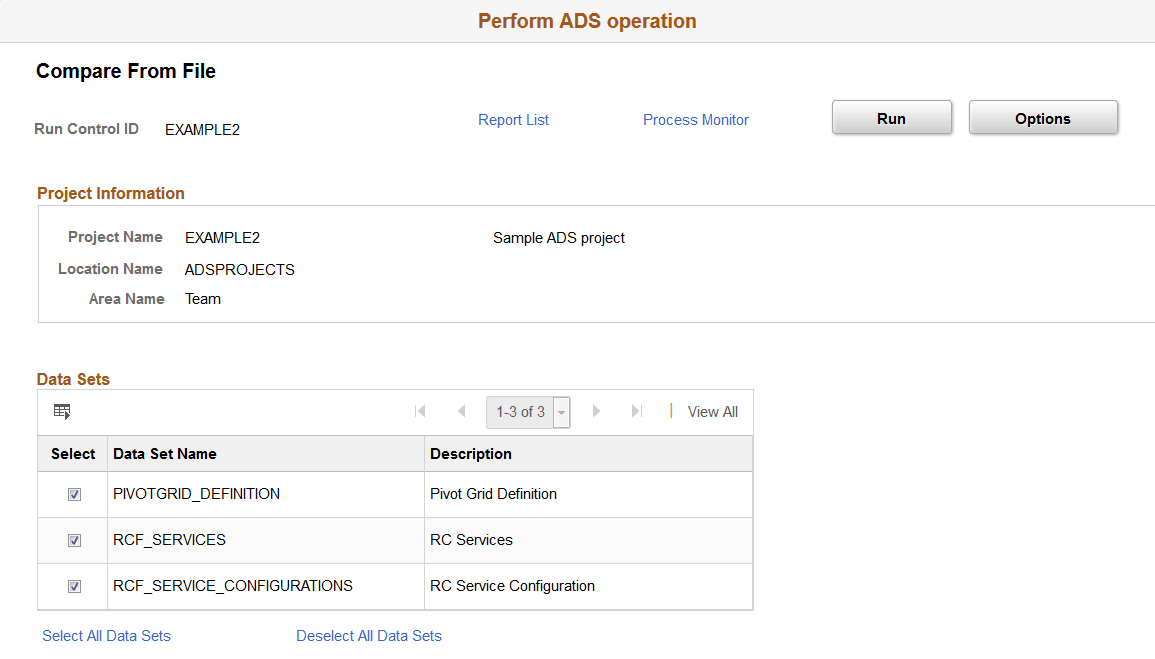
This example illustrates the fields and controls on the Compare From File page. You can find definitions for the fields and controls later on this page.
| Field or Control | Description |
|---|---|
|
Data Sets |
By default all data sets in the project are selected. Use the links to select or deselect all data sets. Select each data set you want to compare. |
Compare Complete
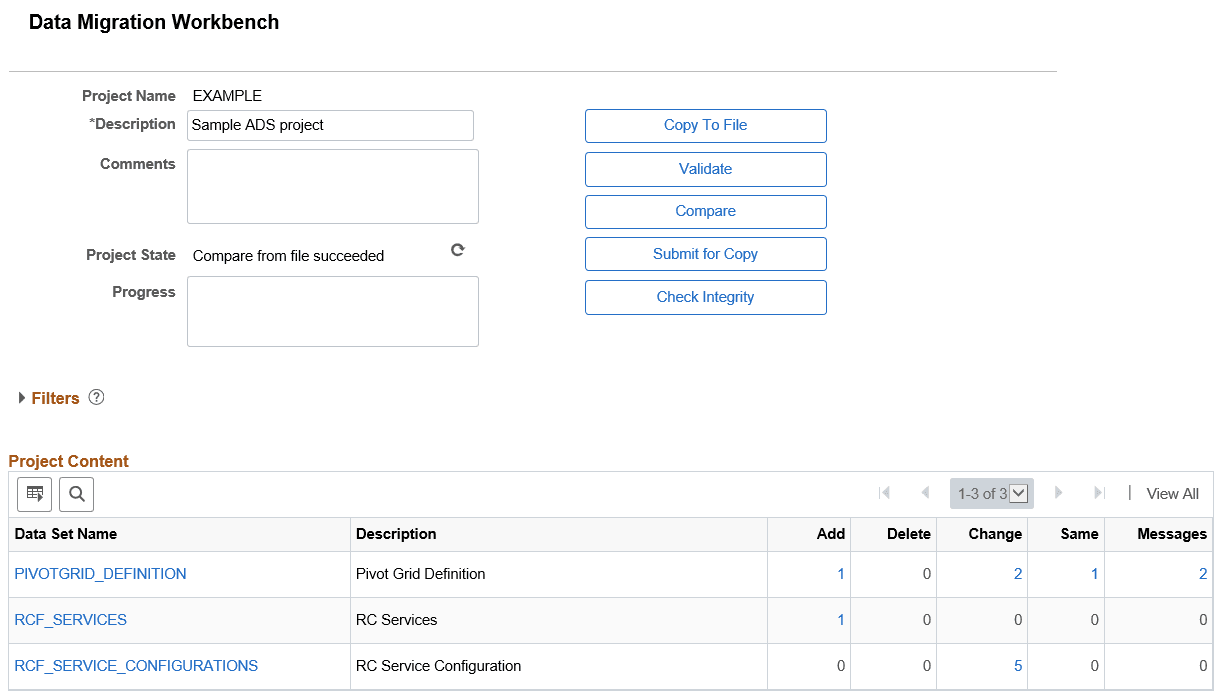
When the compare is complete, the project status is updated and the compare report summary statistics are displayed.
This example illustrates the fields and controls on the Compare Report Summary. You can find definitions for the fields and controls later on this page.
To view the compare reports see Viewing Compare Reports.