Defining the Data Set
Use the General page to identify the top-level properties of the data set.
Navigation:
This example illustrates the fields and controls on the Data Set Designer – General page. You can find definitions for the fields and controls later on this page.
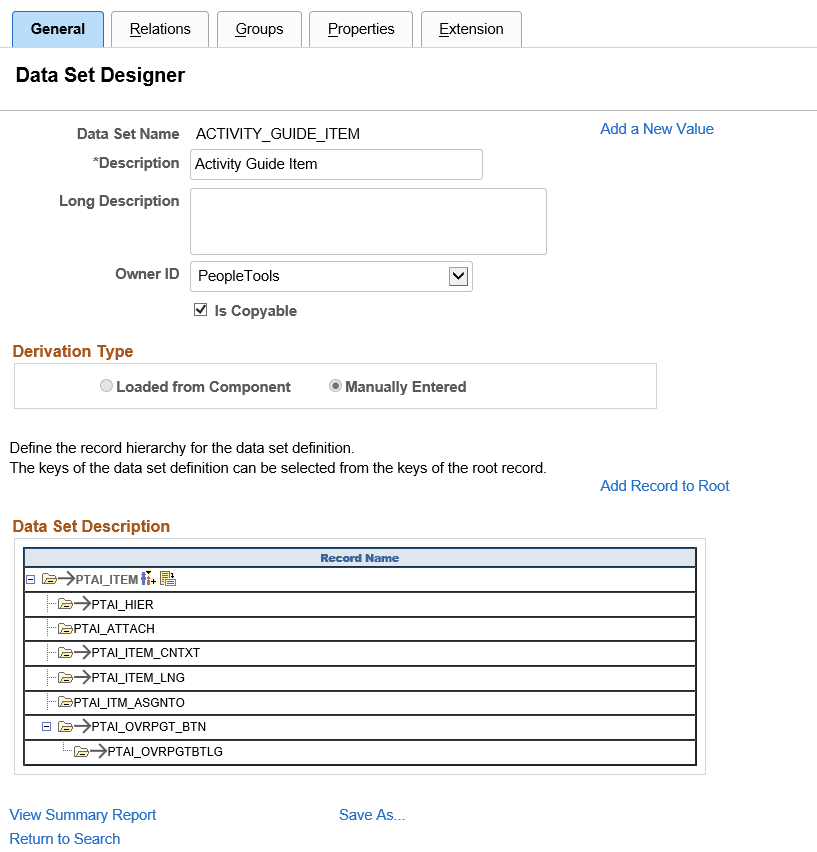
| Field or Control | Description |
|---|---|
|
Data Set Name |
Uniquely identifies the data set definition. Each data set definition describes a distinct shape, and there can be many instances of that type. |
|
Description |
A description of the data set definition. |
|
Long Description |
A long description providing additional information such as guidance, limitations or cautions regarding this data set. |
|
Owner ID |
Identifies the product that will own the data set definition and content. |
|
Is Copyable |
Selecting this check box indicates that the data included in the data set definition is suitable for copy from one database to another. Data is suitable for copy only if doing so will produce a valid object on the target and not corrupt any other data on the target. This field is only editable if Allow setting Copy Compare attributes on ADS definitions is selected for the users Data Migration security profile. |
|
Derivation Type |
This indicates if the data set definition was created manually or generated from a component. Note: In PeopleTools 8.54, the generate option is no longer available. |
|
Add Record to Root |
Select the parent record, which will become the root record and is placed in the Record Hierarchy section. |
|
View Summary Report |
Select this link to view the summary report for the data set. |
|
Save As |
Select this link to clone an existing data set definition. You will be prompted to enter a new data set definition name. |
Record Hierarchy
This section shows the record hierarchy for the data set.
There is at least one row for every record in the data set definition. Related language tables are automatically added by the system.
Note:
A related language record can be added as a child record to its base record.
The following icons are used in the record hierarchy:
| Icon | Description |
|---|---|

|
This icon will appear before each record in the hierarchy that is included in a merge group. |

|
Click this icon to add a child record to the hierarchy. |

|
Click this icon to view the record details. |

|
Click this icon to delete a record in the hierarchy. Note: The root record can not be deleted once the data set definition is saved. |
Use the Insert Record icon to build the record hierarchy and add additional child records.
This example illustrates the fields and controls on the Icon to insert child record. You can find definitions for the fields and controls later on this page.

When you select the Insert Record icon, a child record insertion dialog will open with child record lookup. A child record is a record having the same keys as parent record. The child record may also contain additional keys. The lookup list will be restricted to records that include all keys (and possibly additional keys) of the corresponding parent record that have not already been selected for the current parent record name.
In record hierarchy, the related language record plays a significant role. When a record added to a data set definition (either as root record or as a child record) has a related language record, it is implicitly included in the data set as a child record.
Note:
If you use the delete icon to delete a related language record, a warning message is displayed "Do you want to delete a Related Language Record? (257,755) Deleting Related Language Record separately would cause inconsistency between multiple languages". If the user clicks Yes the warning is ignored and the related language record is deleted. If the user clicks No the related language record remains in the data set.
You can also use the Details icon to view the keys and labels for a record.
This example illustrates the fields and controls on the Record Details page. You can find definitions for the fields and controls later on this page.
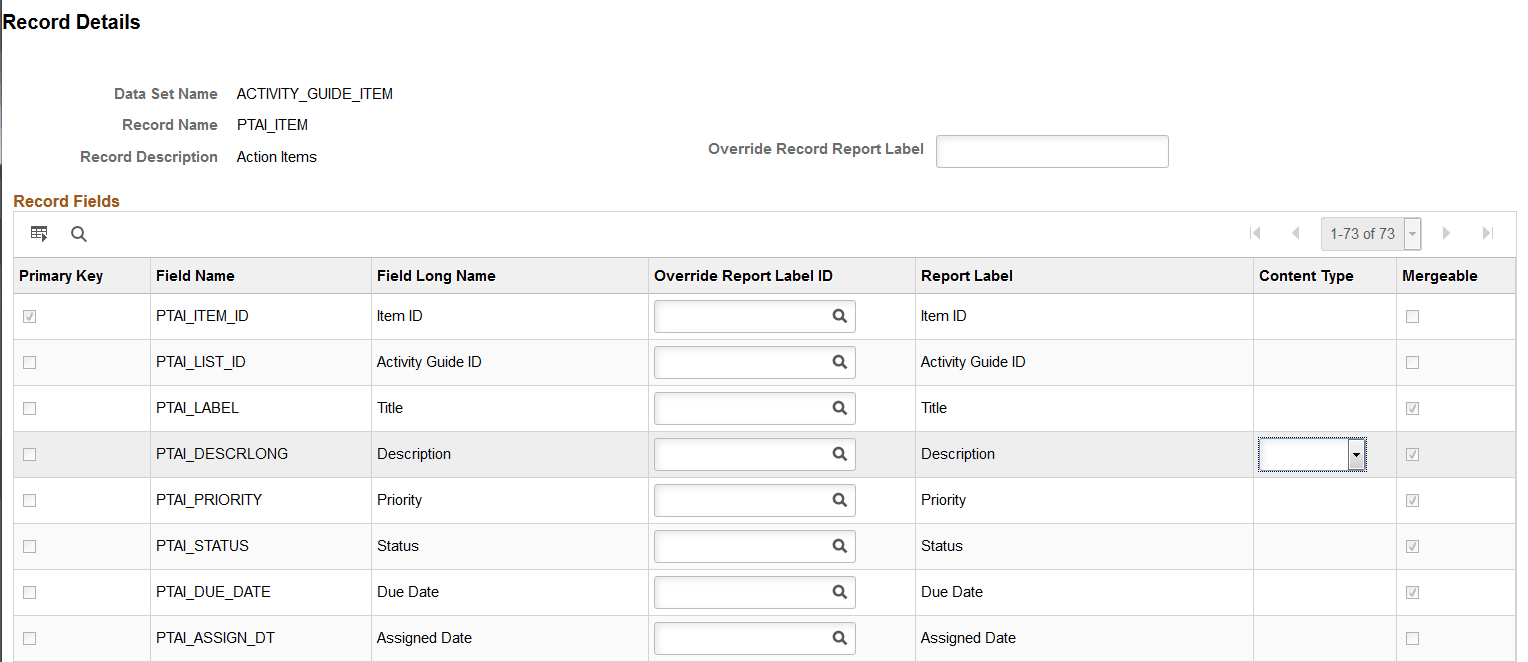
| Field or Control | Description |
|---|---|
|
Override Record Report Label |
The field and record labels are shown in compare reports. The object owner can override the default record label by entering a record report label here. |
|
Override Report Label ID |
The field and record labels are shown in compare reports. The object owner can select a different field label to use in the Override Report Label ID column. |
|
Content Type |
For long character fields, you can indicate if the field should be rendered in html or text on the compare report. |
|
Mergeable |
If the field is in at least one merge group, the check box will be selected. For more information on merge groups see Defining Groups |
Note:
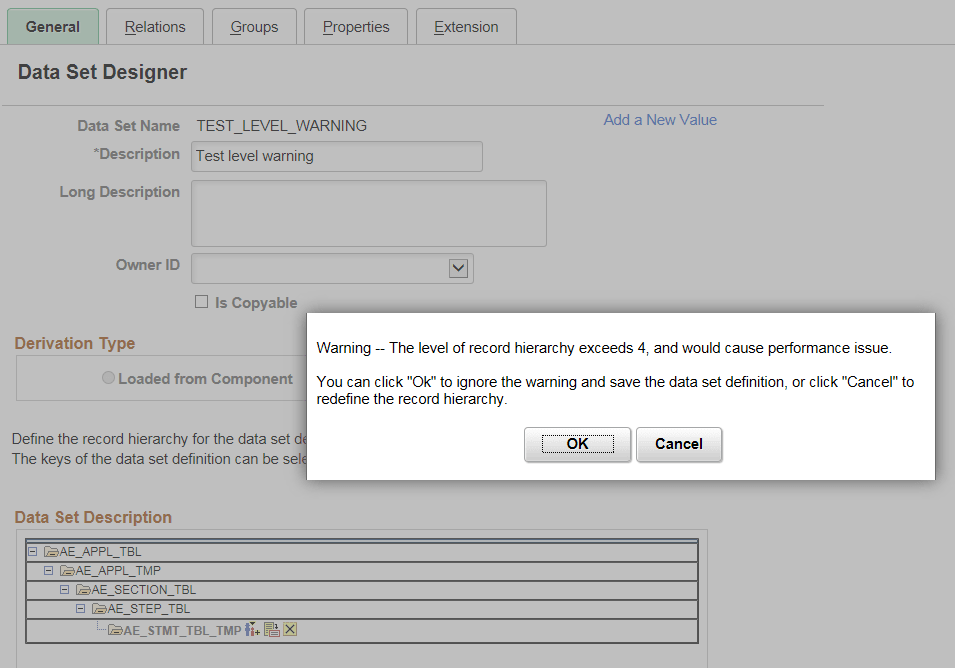
A large record hierarchy level in a Data Set may cause performance issues, therefore if the record hierarchy level is more than 4, a warning is displayed when saving the data set definition.
This example illustrates the warning message when the level of record hierarchy exceeds 4.
Record Restrictions
The records in data set definitions have the following restrictions:
-
Application Data Set definitions can only contain records that are physical tables.
-
Data Set Designer allows a record to appear only once in the record hierarchy.
-
All records in a data set must have unique keys as defined in the key view of the record in Application Designer.
-
The keys of the parent record must also be keys of the child record, though a child record may have some keys that are not in the parent record.
-
The root record cannot be deleted from the data set hierarchy once the data set has been saved.
When creating a new data set definition, you will have the ability to delete the root record before saving the definition.
This example illustrates the delete icon available on the root record.
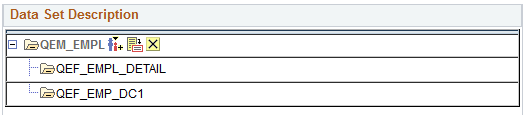
When you delete the root record, all child records are also deleted. If the root record is deleted, you can not save the data set definition.