Navigating the Differences in a Compare Report
Use the different options to navigate through the differences and objects in a compare report. Especially in a larger compare report, finding the differences becomes easier with these options.
To open an existing compare report, select
File> Report from File> View
     Report
.
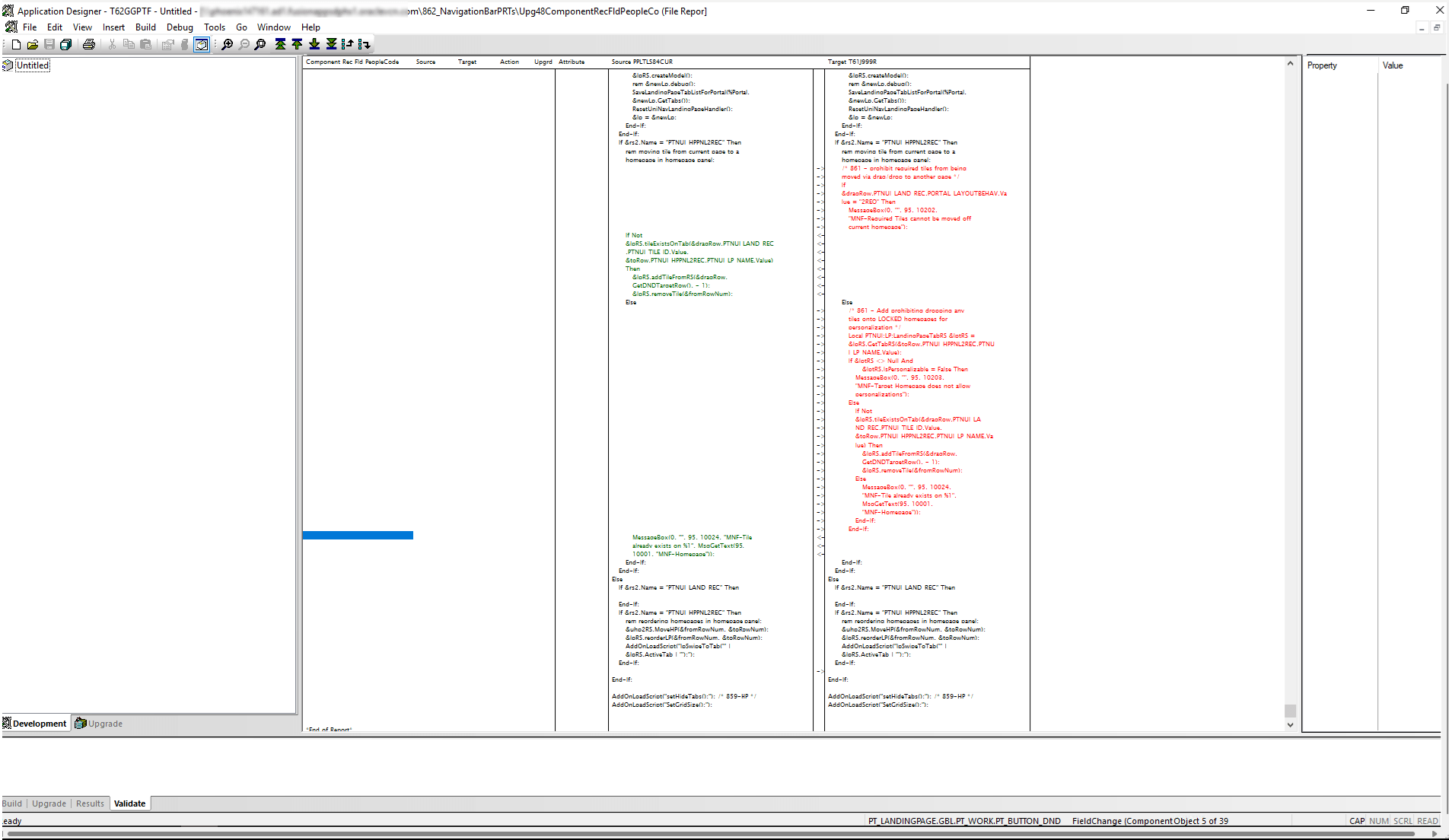
This example illustrates the fields and controls in Application Designer 's toolbar that is used to navigate through the compare report.
| Field or Control | Description |
|---|---|
 |
Displays the very first difference in the compare report. Keyboard shortcut is Alt + Home. |
 |
Displays the previous difference in the compare report. Keyboard shortcut is Alt + Up Arrow. |
 |
Displays the next difference in the compare report. Keyboard shortcut is Alt + Down Arrow. |
 |
Displays the last difference in the compare report. Keyboard shortcut is Alt + End. |
 |
Navigates to the previous object. On the status bar, the details of the object is displayed. Also, the count of current focused object and count of total number of objects are displayed. For example, object 5 of 39. Keyboard shortcut is Shift + Up. |
 |
Navigates to the next object. On the status bar the details of the object is displayed. Also, the count of current focused object and count of total number of objects are displayed. For example, object 6 of 39. Keyboard shortcut is Shift + Down. |
All the options listed above can be accessed through the View menu also.
Initially when the compare report is opened, the View First Difference, View Next Difference, and View Last Difference options are enabled if any differences are present in the report.
If there are no differences in the report, none of the options will be enabled.
Based on the option you have selected, some of the options get disabled or enabled. For example, when you are viewing the very first difference, the options View First Difference and View Previous Difference get disabled.