Creating PeopleSoft MCF Agents for a Third Party
Access the Agent page using the following navigation path:
This example illustrates the fields and controls on the Agent page. You can find definitions for the fields and controls later on this page.
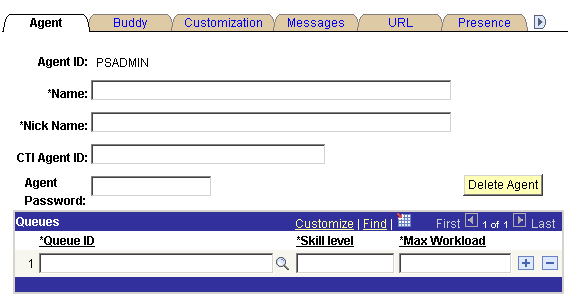
| Field or Control | Description |
|---|---|
|
Agent ID |
Specifies the agent ID. |
|
Name |
Enter the full name of this agent in (lastname,firstname) format. The agent name appears in other agents' buddy lists. |
|
Nick Name |
Enter a short name for this agent. The agent nickname identifies this agent in chat sessions and logs. |
|
CTI Agent ID |
Enter a CTI agent ID for a CTI agent. |
|
Agent Password |
Enter a password for the agent. |
|
Queue ID |
Enter the ID of a queue to which this agent is assigned. Each agent may be assigned to more than one queue. An agent can log on to only one queue at a time from the MultiChannel Console. |
|
Skill |
Select the skill level of this agent for the tasks assigned for this queue. This field is required. This option is used by third parties for task assignment. Third parties define skill levels based on business needs, requirements, policy, and so on. |
|
Maximum Workload |
Select the maximum load that this agent can be assigned before tasks are held or assigned to other agents. This field is required. This option is used by third parties for task assignment. Third parties define maximum workload based on business needs, requirements, policy, and so on. |
Note:
Do not delete a queue from an agent's list unless that agent has no open accepted tasks on that queue.