Moving Agents Between Physical Queues
Access the Move agent page using the following navigation path:
This example illustrates the fields and controls on the Move agent page. You can find definitions for the fields and controls later on this page.
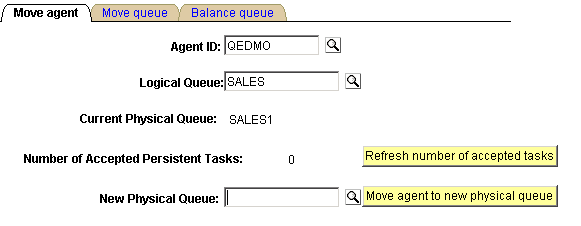
You can move an agent, and any open persistent tasks that are associated with that agent, from one physical queue in one cluster to another physical queue in another cluster on the same logical queue.
| Field or Control | Description |
|---|---|
|
Logical Queue |
Select the logical queue within which the agent is to be moved. |
|
Number of Accepted Persistent Tasks |
Displays the number of persistent tasks this agent has accepted on this physical queue. This number is updated and displayed when you select the logical queue. |
|
Refresh number of accepted tasks |
Click to update the number of persistent tasks accepted by this agent on the current physical queue. |
|
New Physical Queue |
Select the new physical queue to which this agent and the persistent tasks accepted by this agent will be assigned. |
|
Move agent to new physical queue |
Click to perform the action. |
Note:
Ongoing chat sessions, which are not persistent tasks, are not affected by the move agent action.