Using the Customer Chat Sample Page
Access the Customer Chat page using the following navigation path:
Note:
This page is available using both queue server and third-party routing server.
This example illustrates the fields and controls on the Customer Chat page.
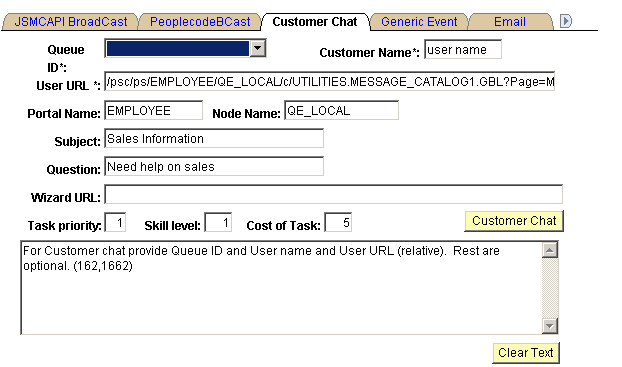
This page demonstrates the InitChat() built-in function, including required and optional parameters.
This page is not intended for production use. On a typical application page, the developer includes a Live Help or Customer Chat button that calls the InitChat() built-in function and passes required parameters, including the context of the chat request. The sample customer chat page demonstrates values that can be included in the InitChat() parameters. The user may not be prompted for any information.
To run a sample chat:
-
Access the MultiChannel Console.
-
Open the Customer Chat page.
-
Open the Queue ID drop-down list box and select the queue that you are logged on to.
The other fields are automatically populated with values that generate a sample chat session. You can change the values as long as valid required values are included.
The User URL is a required field that contains the application page URL to send to the agent chat browser.
The optional Wizard URL field represents a grab URL; the actual page that appears is determined by InitChat() parameters.
The text box displays error messages and additional information for using the sample page.
-
Click Customer Chat.
The customer chat window appears.
-
On the MultiChannel Console, click the flashing chat notification icon to accept the chat session.
The agent chat window appears.
You can enter text as both agent and customer to demonstrate chat functionality.