Using the GetMail - Server Page
Access the GetMail - Server page using the following navigation path:
This example illustrates the fields and controls on the GetMail - Server page. You can find definitions for the fields and controls later on this page.
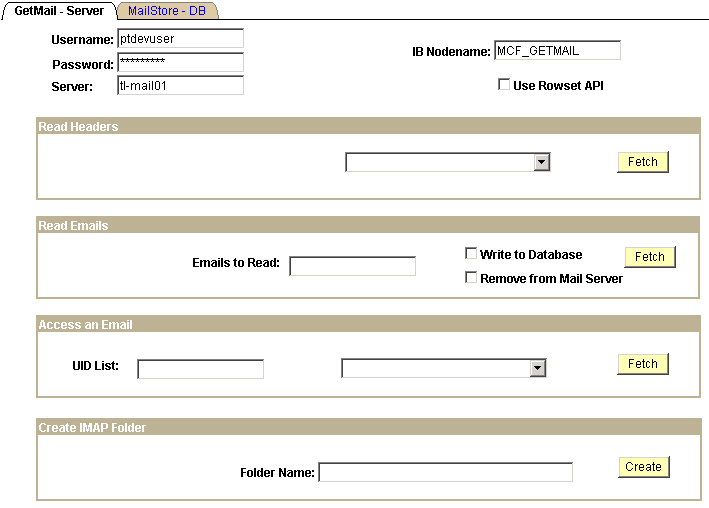
This page demonstrates reading or deleting emails from the mail server. It also demonstrates the storage and retrieval of emails to and from the database tables. Output of the response to each of the requests is written to a file at %PS_SERVDIR%/files/mcfdata.out on the application server. Check this file after each test for the output data.
To demonstrate email functionality, send an email to the user name and server that you enter on the GetMail - Server page.
| Field or Control | Description |
|---|---|
|
Username and Password |
Enter a valid username and password for an account on the mail server. |
|
Server |
Enter the mail server. |
|
IB Nodename (Integration Broker node name) |
Enter the PeopleSoft Integration Broker node used to access email from the mail server. The default is MCF_GETMAIL |
|
Use Rowset API |
Select to use the rowset-based GetMail API. Deselect to use the new Mail Classes API. |
Read Headers
Select a method to be called from the drop-down list box, then click Fetch. Select from:
| Field or Control | Description |
|---|---|
|
Message Count: |
Writes the number of emails in the specified mailbox to the output file mcfdata.out. |
|
ReadHeadersWithAttach: |
Writes headers and attachment information for all emails in the specified mailbox to the output file mcfdata.out. |
Read Emails
Enter the number of emails to read, select other parameters, then click Fetch to read emails.
| Field or Control | Description |
|---|---|
|
Emails to Read |
Enter the number of emails to retrieve from the specified mailbox and write to the output file mcfdata.out. |
|
Write to Database |
Select to have the retrieved emails written to the database as well as to the output file mcfdata.out. |
|
Remove from Mail Server |
Select to delete emails from the mail server after they have been retrieved . |
Access an Email
Enter an email UID list, select a method from the drop-down list box, and then click Fetch to access the selected emails.
| Field or Control | Description |
|---|---|
|
UID List (unique identifier list) |
Enter the unique ID of an email to be retrieved or deleted. To delete, you can enter a comma-delimited list of unique email IDs (UID) to be deleted. Each email has a unique number (the UID) associated with it that is permanently guaranteed not to refer to any other email in the mailbox. To find the UID of an email, run the ReadHeadersWith Attach option first, which returns the UID for each email. If an invalid UID is specified, one empty row is returned. |
|
Read Email w/ attachment |
Retrieves the specified email from the specified mailbox and writes it to the output file mcfdata.out. |
|
Remove Message |
Deletes the specified email from the specified mailbox. |
Create IMAP Folder
Create an email folder; only valid for IMAP4 mail servers.
| Field or Control | Description |
|---|---|
|
Folder Name |
Enter the name of the folder to create. |