Viewing Chat Logs
Access the Chat page using the following navigation path:
This example illustrates a chat log on the Chat page.
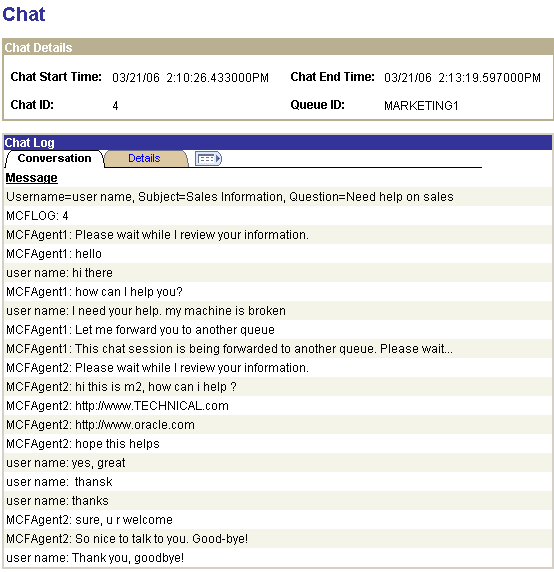
If enabled, this log records the contents and events of every chat session.
To enable chat logging, set log_chat_ses to yes on the Cluster Tuning page. For this parameter to take effect, click Refresh logging parameters on the Cluster Notify page.
Details Tab
Access the Details tab of the Chat Page using the following navigation path:
This example illustrates details of a chat log on the Chat page.

The Details tab displays detailed information about the selected chat conversation.