Search Processing in Update Modes
If a user selects any of the update action modes (Update, Update/Display All, or Correction), the Component Processor begins update mode search processing, which includes the following steps:
-
The SearchInit PeopleCode event is initiated, which triggers any SearchInit PeopleCode associated with the record field or the component search record, on the keys or alternate search keys in the component search record.
This enables you to control the search page field values or the search page appearance programmatically, or to perform other processing prior to the appearance of the search page.
Note:
Set the search record for the component in the component properties.
For example, the following program in SearchInit PeopleCode on the component search key record field EMPLID sets the search key page field to the user’s employee ID, makes the page field unavailable for entry, and enables the user to modify the user’s own data in the component:
EMPLID = %EmployeeId;
&Field = GetField(EMPLID).Enabled = False;
AllowEmplIdChg(True);
Note:
Generally, the system search processing displays the search page. You can use the SearchInit event, and the SetSearchDialogBehavior function, to set the behavior of the search page before it is displayed. If SetSearchDialogBehavior is set to Force display, the dialog box is displayed even if all required keys have been provided. You can also set SetSearchDialogBehavior to skip if possible. In addition, you can force search processing to always occur by selecting Force Search Processing in the component definition properties in PeopleSoft Application Designer.
-
The search page and prompt list appear, in which the user can enter search keys or select an advanced search to enter alternate search keys.
Note:
Normally, the values in the search page are not set to default values. However, if the SearchDefault function was executed in SearchInit PeopleCode for any of the search key or alternate search fields, those fields in the dialog box are set to their system default values. No other default processing occurs (that is, the FieldDefault event is not initiated).
-
The user enters a value or partial value in the search page, and then clicks Search.
-
The SearchSave PeopleCode event is initiated, which triggers any SearchSave PeopleCode associated with the record field or the component search record, on the search keys or alternate search keys in the search record.
This enables you to validate the user entry in the search page by testing the value in the search record field in PeopleCode and, if necessary, issuing an error or warning. If an error is executed in SearchSave, the user is sent back to the search page. If a warning is executed, the user can click OK to continue or click Cancel to return to the search page and enter new values.
If partial values are entered, such that the Component Processor can select multiple rows, then the prompt list dialog box is filled, and the user can select a value. If key values from the search page are blank, or if the system cannot select any data based on the user entry in the search page, the system displays a message and redisplays the search page. If the values entered produce a unique value, the prompt list is not filled. Instead, the user is taken directly to the page.
Note:
Normally, no system edits are applied when the user changes a field in the search page. However, if the SearchEdit property is executed for specific search page fields in SearchInit PeopleCode, the system edits are applied to those fields after the user changes a field and either leaves the field or clicks Search. In addition, the SearchEdit property can also be set in metadata for the record field definition.
If the user entry in the field fails the system edits, the system displays a message, highlights the field in question, and returns the user to the dialog box. The FieldEdit and SaveEdit PeopleCode events are not initiated. The SearchSave event is not initiated after values are selected from the search list. To validate data entered in the search page, use the Component PreBuild event.
-
The Component Processor buffers the search key values.
If the user then opens another component while this component is active, the Component Processor uses the same search key values and bypasses the search page.
The following flowchart shows this logic. (It does not show the effects of executing the SearchDefault and SearchEdit Field class properties.)
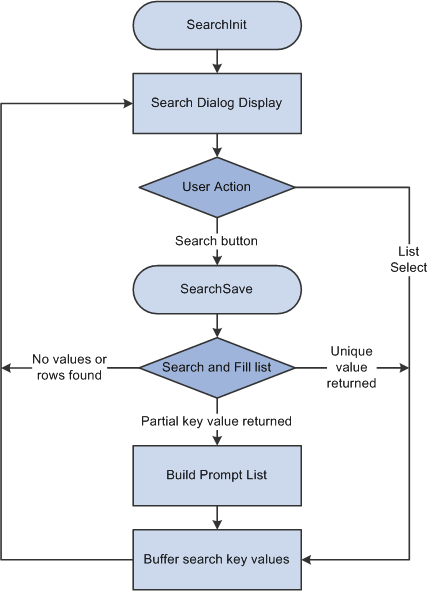
Note:
You can use the IsSearchDialog built-in function to create PeopleCode that runs only during search processing. To create processes that run only in a specific action mode, use the %Mode system variable. This could be useful in code that is part of a library function and that is invoked in places other than from the search page. It could also be used in PeopleCode associated with a record field that appears in pages and in the search page.