WinMessage function
Syntax
WinMessage(message [, style] [, title])Description
Note:
The WinMessage function is supported for compatibility with previous releases of PeopleTools. New applications should use MessageBox instead.
See MessageBox function.
Use the WinMessage function to display a message in a message box.
Use the WinMessage for simple informational display, where the end user reads the message, then clicks an OK button to dismiss the message box. WinMessage can also be used for branching based on end user choice, in which case the message box contains two or more buttons (such as OK and Cancel or Yes, No, and Cancel). The value returned by the function tells you which button the end user clicked, and your code can branch based on that value.
If WinMessage displays more than one button, it causes processing to stop while it waits for user response. This makes it a "user think-time" function, restricting its use in certain PeopleCode events.
The contents of the message displayed by WinMessage can be passed to the function as a string, but unless you are using the function for testing purposes you should always retrieve the message from the Message Catalog using the MsgGet or MsgGetText function. This has the advantage of making the messages much easier to localize and maintain.
Note that if you pass a string to the WinMessage function (or a Warning or Error function) instead of using a Message Catalog function, the explanation text from the last call to the Message Catalog may be appended to the message. This can cause unexpected results.
The Message Catalog functions MsgGet, MsgGetText, and MessageBox retrieve and store two text strings in memory: the message text and the explanation text. The MsgGetExplainText function retrieves and stores only the explanation text. When these strings are displayed by a WinMessage, MessageBox, Error or Warning dialog, the buffers are reinitialized.
If a Message Catalog function is called without displaying the text, for instance to populate a variable or record field, the message text and the explanation text remain in memory.
If a subsequent call passes a string to a WinMessage, Warning, or Error function before the buffers are reinitialized, the explanation text remains in memory and is appended to the message.
The following example shows one way this could occur.
The Message Catalog might contain an entry such as this:
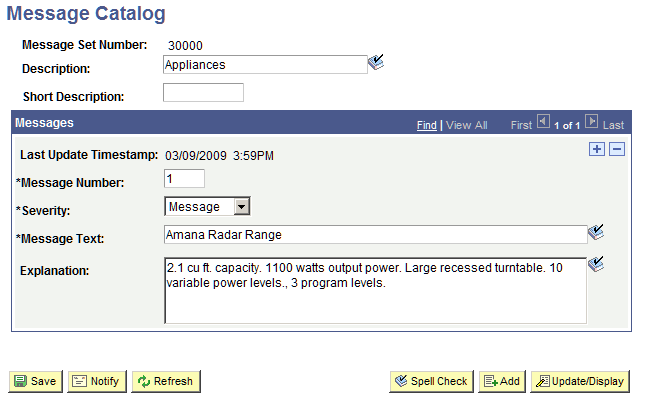
MsgGetText is used to assign the Message Catalog entry to a variable for further processing.
&PartDesc = MsgGetText(30000, 5, "Amana Radar Range");
/** Process order **/
WinMessage("Your Kitchen Upgrade Order has been processed");
The WinMessage dialog displays the explanation text appended to the intended message:
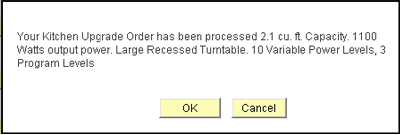
This example shows a simple workaround to clear the buffers using MsgGet.
&PartDesc = MsgGetText(30000, 5, "Amana Radar Range");
/** Process order **/
&Dummy = MsgGet(0,0, " ");
WinMessage("Your Kitchen Upgrade Order has been processed");
Parameters
| Parameter | Description |
|---|---|
|
Message |
Text displayed in message box. Normally you want to use the MsgGet or MsgGetText function to retrieve the message from the Message Catalog. |
|
Title |
Title of message box. |
|
Style |
Either a numerical value or a constant specifying the contents and behavior of the dialog box. This parameter is calculated by cumulatively adding either a value or a constant from each of the following categories: |
| Category | Value | Constant | Meaning |
|---|---|---|---|
|
Buttons |
0 |
%MsgStyle_OK |
The message box contains one push button: OK. |
|
1 |
%MsgStyle_OKCancel |
The message box contains two push buttons: OK and Cancel. |
|
|
2 |
%MsgStyle_AbortRetryIgnore |
The message box contains three push buttons: Abort, Retry, and Ignore. |
|
|
3 |
%MsgStyle_YesNoCancel |
The message box contains three push buttons: Yes, No, and Cancel. |
|
|
4 |
%MsgStyle_YesNo |
The message box contains two push buttons: Yes and No. |
|
|
5 |
%MsgStyle_RetryCancel |
The message box contains two push buttons: Retry and Cancel. |
Returns
If the style parameter is provided, WinMessage optionally returns a Number value. If the style parameter is omitted, WinMessage optionally returns a Boolean value: True if the OK button was clicked, otherwise it returns False.
The return value is zero if there is not enough memory to create the message box.
If the style parameter is provided, WinMessage returns one of the following Number values:
| Value | Constant | Meaning |
|---|---|---|
|
-1 |
%MsgResult_Warning |
Warning was generated. |
|
1 |
%MsgResult_OK |
OK button was selected. |
|
2 |
%MsgResult_Cancel |
Cancel button was selected. |
|
3 |
%MsgResult_Abort |
Abort button was selected. |
|
4 |
%MsgResult_Retry |
Retry button was selected. |
|
5 |
%MsgResult_Ignore |
Ignore button was selected. |
|
6 |
%MsgResult_Yes |
Yes button was selected. |
|
7 |
%MsgResult_No |
No button was selected. |
Example
The following example displays a message dialog box with Yes and No buttons. The message is taken from the Message Catalog. The message displayed looks like this:
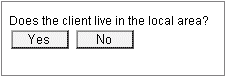
When the end user clicks the Yes or No button, a result is passed back that the program uses to control branching.
/* Displays Yes/No buttons in message box.  */
&RESULT = WinMessage(MsgGetText(30000, 1, "Message not found."), 4, "Test⇒
 Application");
if &RESULT = %MsgResult_Yes then
   /* Yes button was pressed -- do Yes button stuff */
else
   /* No button was pressed -- do No button stuff */
end-if;
Restrictions on Use in PeopleCode Events
The style parameter is optional in WinMessage. If style is omitted WinMessage displays OK and Cancel buttons, which causes the function to behave as a think-time function. To avoid unnecessary restrictions, you should always pass an appropriate value in the WinMessage style parameter.
If the style parameter specifies a single button (that is, the OK button), the function can be called in any PeopleCode event.
If the style parameter specifies more than one button, or if the style parameter is omitted, WinMessage returns a value based on user response and interrupts processing until the user has clicked one of the buttons. This makes it a "user think-time" function, subject to the same restrictions as other think-time functions which means that it cannot be used in any of the following PeopleCode events:
-
SavePreChange.
-
Workflow.
-
RowSelect.
-
SavePostChange.
-
Any PeopleCode event that fires as a result of a ScrollSelect (or one of its relatives) function calls, or a Select (or one of its relatives) Rowset class method.
Important:
On the initial loading of a component (initial page Activate event), it is recommended that you allow the component to render correctly before you call any modality that requires user interaction (think-time functions).
If you call any modality that requires user interaction during the initial page Activate event, except if its a message box with only an OK button, the user interaction suspends the processing of the page load leading to undesired rendering. For example, the message box (with more than one button) loses its styling, and the rendering of the page and component is corrupted. If you use DoModalPopup or DoModalComponentPopup, you should note that it will render as a full page.
Restrictions on Use With a Component Interface
This function is ignored (has no effect) when used by a PeopleCode program that’s been called by a Component Interface.
Message Box Icons
In the PeopleSoft Pure Internet Architecture, you can’t change the icon of a message box. You can change the number and type of buttons, as well as the default button, but the message always displays with the warning icon (a triangle with an exclamation mark in it.)